
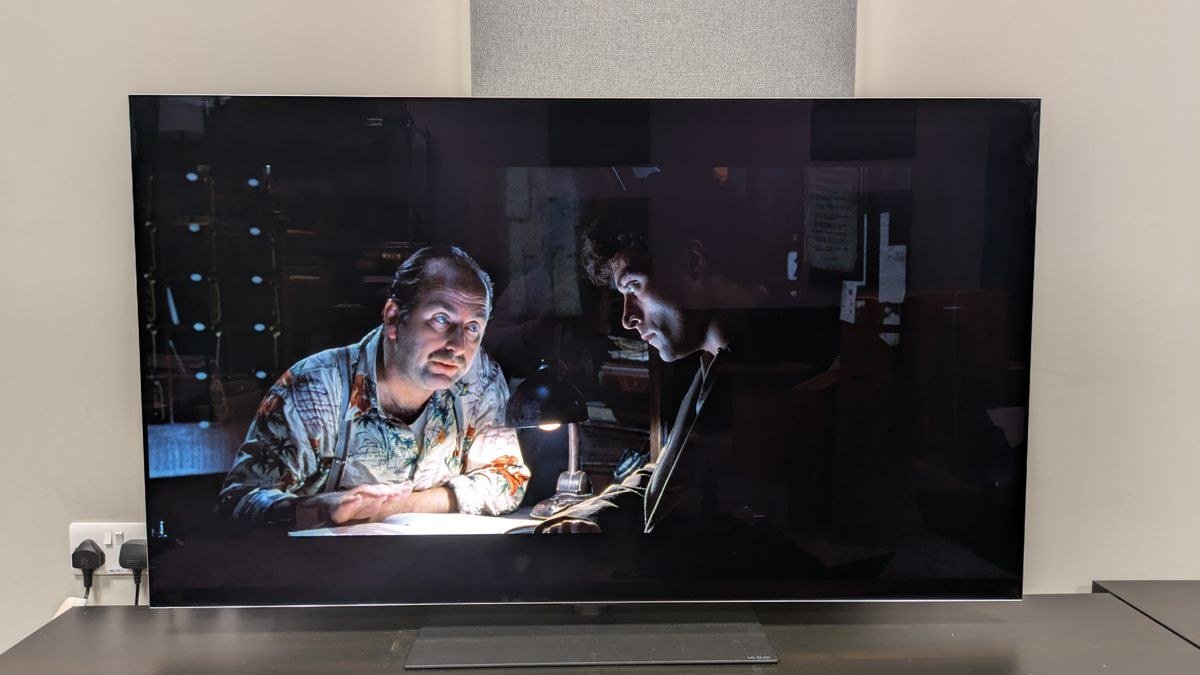
Why Is the Picture on My New TV Too Dark in Movie Mode?

Why is the picture on my new TV too dark in movie mode? You unboxed a beautiful new TV, switched to the recommended Movie or Filmmaker Mode, and… it’s dim. Murky. Everyone looks like they’re in a cave. Your instinct says the mode is broken — but it’s actually doing exactly what it’s supposed to do. Your room is the problem.
I went through this exact disappointment with my own TV. The fix wasn’t a new TV or abandoning Movie Mode — it was understanding what the mode assumes about your room. Here’s the whole story.
Why Is the Picture on My New TV Too Dark in Movie Mode? It’s Calibrated for Darkness
Movie/Filmmaker Mode is calibrated to reference standards — the exact brightness and color the director saw in the editing suite. Those suites are dark rooms. The mode deliberately caps brightness and disables the artificial ‘pop’ processing, because accuracy is the goal. In a dark room, it looks stunning: rich, natural, cinematic.
In a bright living room at 3pm with sunlight pouring in, that same accurate picture looks dim — because it is dim, relative to your sunlit room. Your eyes adapt to the brightest thing around; when the room is bright, a reference-level TV looks dark by comparison. The mode isn’t broken; the viewing environment doesn’t match what it was designed for. This is also why the panel technology matters — our What is the difference between an LCD and an OLED screen LCD vs OLED guide explains brightness differences between display types.
The Fixes, Easiest First
First, try the TV’s other accurate-ish modes: most TVs have a ‘Cinema Home’ or bright-room variant that keeps the good color while boosting brightness for ambient light. It’s the best of both worlds and it’s one menu tap. Second, check the eco/ambient light sensor settings — many TVs ship with aggressive power-saving that dims the screen based on room light, and it often overdoes it. Turn off ‘Eco Mode’ or set the light sensor to minimum effect.
Third, give your eyes time: switching from torch-bright Vivid mode to Movie Mode, everything looks dark for about 15 minutes while your eyes adapt. Watch a full show before judging. Fourth, control the room: closing blinds for movie night does more for perceived picture quality than any setting. Bias lighting (a cheap LED strip behind the TV) is the enthusiast trick — it makes blacks look blacker and reduces eye strain in dark rooms.
Fix the dark picture, in order:
- Try ‘Cinema Home’ mode — accurate color with bright-room brightness.
- Turn off Eco Mode and aggressive ambient light sensors.
- Raise backlight/OLED light; leave contrast and sharpness alone.
- Give your eyes 15 minutes to adapt before judging.
- Control the room: blinds closed, or add bias lighting behind the TV.
Settings Worth Tweaking (and Ones to Leave Alone)
Safe to adjust: backlight/OLED light (raise it — this is the clean brightness control), brightness (the black-level control; leave near default), and gamma (try 2.2 for bright rooms instead of 2.4). These preserve the mode’s accuracy while adapting to your room.
Leave alone: contrast (cranked contrast clips highlight detail), sharpness (artificial edge enhancement — set near zero), and motion smoothing (the ‘soap opera effect’ — turn it off; it doesn’t fix darkness and ruins film’s look). If you’ve been tempted to just switch back to Vivid/Sports mode: resist. Those modes blow out colors and crush detail — they look impressive for 30 seconds and fatiguing for two hours. A properly set Movie Mode with raised backlight beats Vivid in every way that matters.
When Dark Picture Means Something’s Wrong
Sometimes it really is a defect or a bad setting: HDR content playing in SDR mode (or vice versa) can look washed out or dark — check that your HDMI ports are set to ‘Enhanced’ mode and your sources output the right format. A failing backlight (on LCDs) shows as uneven darkness or flickering, not uniform dimness. And some budget TVs simply can’t get bright enough for sunny rooms regardless of settings — that’s a hardware limit, not a calibration issue.
If one input looks dark but others don’t, it’s the source device’s settings, not the TV. If everything is uniformly dim even at max backlight in a dark room, check for software updates (manufacturers do fix dimming bugs) and then consider a warranty call. But 90% of ‘too dark’ complaints resolve with the room and settings fixes above. And if you’re shopping for a replacement instead of fixing, Is it worth paying extra for a 4K TV or is HD enough covers whether 4K is worth the jump.
The Bottom Line
Why Is the Picture on My New TV Too Dark in Movie Mode? Pro Tips
Pro tip: calibrate with actual content, not test patterns. Put on a movie you know intimately — one you’ve seen many times — in Movie mode, and adjust backlight until faces look natural and dark scenes show detail without glowing. Your familiarity with the content is a better calibration tool than any test disc for everyday viewing. If skin tones look right and night scenes show texture, you’re done; the numbers don’t matter.
Also: give it two weeks before judging. Your eyes have been trained by years of torch-mode Vivid settings, and accurate picture initially looks ‘dull’ by comparison — it’s not dull, it’s correct, and your visual system adapts. Almost everyone who sticks with Movie mode for two weeks finds Vivid unwatchable afterward; the adaptation goes both ways. And if you watch a lot of daytime sports, save a separate brighter picture mode for that — there’s no rule saying one mode must serve every content type.
Check whether your TV has a dedicated ‘Filmmaker Mode’ that auto-activates — many newer TVs detect properly flagged content and switch automatically, which means your manual settings might be fighting the automation. If the picture looks different between apps, that’s probably why: one app sends the flag, another doesn’t. Understanding the auto-switching ends the confusion, and you can then calibrate each mode once instead of chasing a moving target. The TV is smarter than it used to be; work with it, not against it.
Movie Mode looks dark because it’s calibrated for dark rooms — your bright living room is the mismatch, not the TV. Use the bright-room cinema preset, kill the eco dimming, raise the backlight, and tame the ambient light. The accurate, cinematic picture is in there; it just needs your room to meet it halfway.
Movie mode isn’t broken — it’s honest, and honesty looks dim next to showroom exaggeration. Raise the backlight for your room, kill the eco dimming, give your eyes two weeks, and calibrate with movies you love. The cinematic picture was in the TV all along; it just needed your room to meet it halfway.