
What Is Two-Factor Authentication and How Do I Set It Up?

What is two-factor authentication and how do I set it up? In plain English: 2FA means logging in takes two proofs instead of one — your password plus something else, like a code from your phone. It’s the single highest-value security step a normal person can take, and it takes about five minutes per account.
I resisted 2FA for years because it sounded annoying. Then a friend’s email got hijacked through a reused password, and watching that mess unfold converted me in an afternoon. I now have it on everything important, and the daily friction is basically zero. Here’s the whole setup.
What Is Two-Factor Authentication, Exactly?
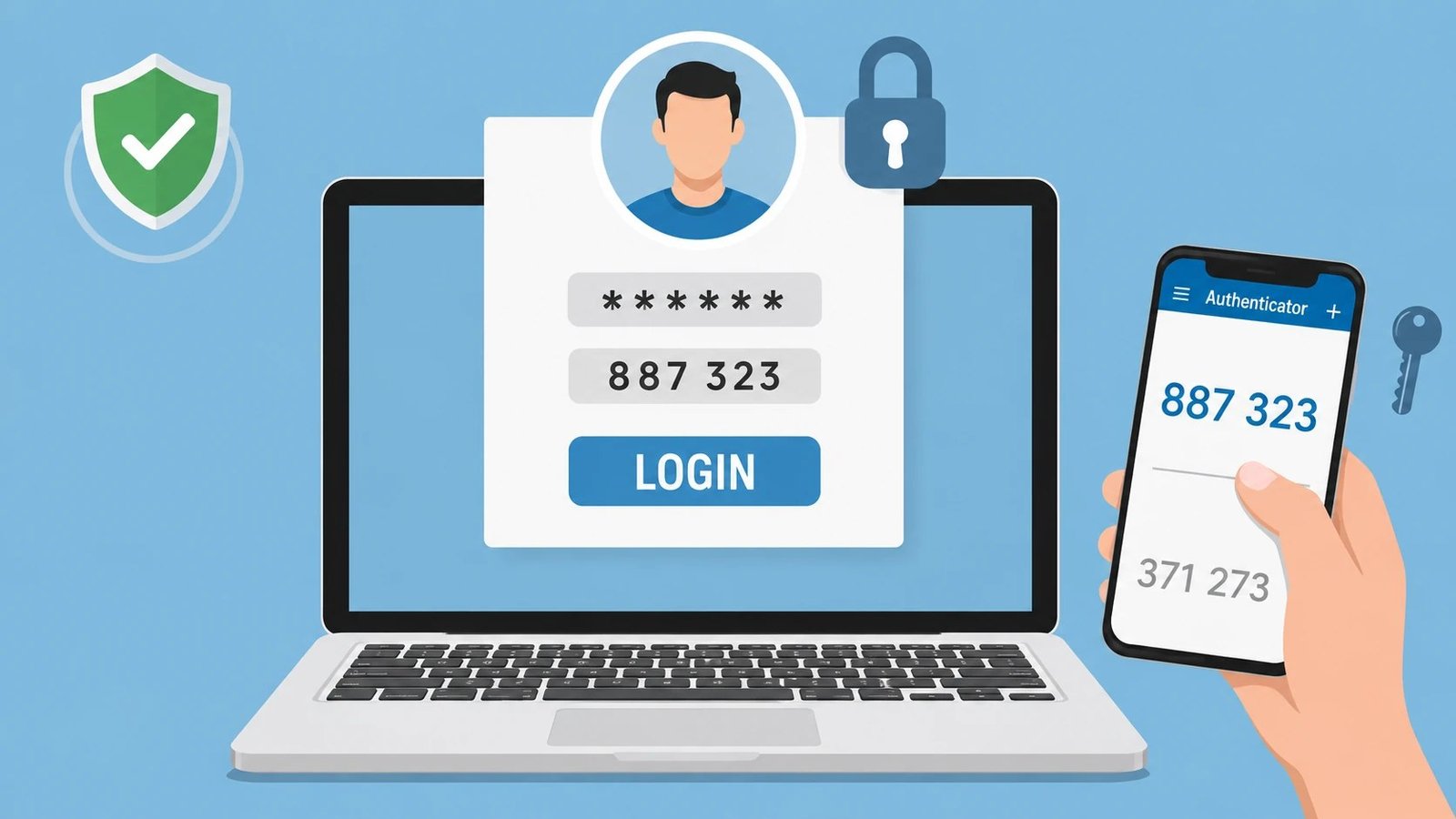
Normally, a password is the only thing between a stranger and your account — and passwords leak constantly through data breaches. Two-factor authentication adds a second check: after your password, the service asks for a time-sensitive code (usually six digits) that only your phone can generate. A hacker in another country might steal your password, but they can’t steal the code without your physical device.
Think of it like a deadbolt on top of your regular lock. One lock can be picked; two different locks are exponentially harder. Security researchers consistently find that 2FA blocks the vast majority of automated account-takeover attempts — it’s not perfect, but it’s the closest thing to a silver bullet in personal security. If you’ve ever wondered whether your logins already leaked, check How do I check if my email was part of a data breach first, then lock everything down with 2FA.
The Three Types of Second Factors, Ranked
Best: authenticator apps (Google Authenticator, Authy, Microsoft Authenticator). They generate codes offline on your phone, can’t be intercepted, and work without cell service. This is what you should use everywhere it’s offered.
Good: hardware security keys (like YubiKeys) and the newer passkeys — the strongest option, but with a small upfront cost or setup. Fine: SMS text codes. Better than nothing, but SIM-swapping attacks can intercept texts, so treat SMS as the fallback, not the plan. Avoid: email-based codes on the same email you’re protecting — that’s locking the safe and taping the key to it.
Setting It Up: The Five-Minute Process
Pick your most important account — email first, always, because email resets everything else. Go to the account’s security settings, find ‘Two-factor authentication’ or ‘2-Step Verification,’ and choose the authenticator-app option. You’ll see a QR code; scan it with your authenticator app, enter the six-digit code it shows, and you’re enrolled.
Critical step most people skip: save the backup/recovery codes the service shows you. Screenshot them, print them, store them somewhere safe — these are your way back in if you lose your phone. Then repeat for your bank, social media, cloud storage, and anything tied to money. Do email today and one account per day after; you’ll be fully covered within a week. Google’s setup walkthrough at Google's official support guides covers the details if you get stuck.
Your 2FA priority list — secure these first:
- Email accounts (the master key to everything else) — do this today.
- Banking, investment, and payment apps — money first.
- Cloud storage and social media — identity theft targets.
- Password manager itself — protect the vault that holds everything.
- Any work accounts your employer hasn’t already secured.
Living With 2FA Day to Day
The honest review after years of use: the friction is wildly overstated. Most services remember trusted devices for 30 days, so you’re entering a code maybe once a month per service. Password managers with built-in 2FA (1Password, Bitwarden) can even auto-fill codes, making it nearly invisible.
The real risk isn’t inconvenience — it’s lockout. If you lose your phone without backup codes, recovery is painful by design. Mitigate it now: save recovery codes for every account, consider a second device with your authenticator app as backup, and for your most critical accounts, add a hardware key. Ten minutes of preparation prevents the worst-case scenario entirely.
The Bottom Line
What Is Two-Factor Authentication and How Do I Set It Up? Common Mistakes
The most dangerous 2FA mistake: setting it up and ignoring the recovery codes. Those ten one-time codes the service shows you during setup are your only way back in if you lose your phone — screenshot them, print them, store them somewhere safe. I’ve watched people get locked out of their own email for weeks because they skipped this thirty-second step. The security feature becomes a self-inflicted denial of service without backup codes.
Second mistake: using SMS codes for your most important accounts when authenticator apps are available. SIM-swapping attacks — where criminals convince your carrier to move your number to their SIM — defeat SMS 2FA completely, and they happen thousands of times a year. Authenticator apps aren’t vulnerable to this. Use the app for email, banking, and anything financial; SMS is acceptable only where nothing better is offered. And enable 2FA on the authenticator’s cloud backup itself — the chain is only as strong as its weakest link.
Don’t forget to secure the recovery email and phone number on your accounts — they’re the backdoors attackers target when 2FA blocks the front. An old Yahoo address you never check, secured with a password from 2012 and no 2FA, can be used to reset your Gmail. Audit every important account’s recovery options: current email, current phone number, both secured with 2FA themselves. The chain of account recovery is only as strong as its weakest link, and recovery options are where most people’s chains quietly break.
Two-factor authentication turns your password from a single point of failure into one half of a much stronger lock. Use an authenticator app, save your recovery codes, start with email, and expand from there. Five minutes per account buys you protection against the most common attacks on the internet — there’s no better security deal.
Two-factor authentication is simple: authenticator app everywhere it’s offered, recovery codes saved somewhere safe, email secured first. Do those three things and you’ve closed the biggest security hole in most people’s digital lives. It’s the highest-value five minutes in personal cybersecurity.
[…] never happens. A manager makes good security the lazy option, which is why it sticks. Pair it with What is two-factor authentication and how do I set it up and your accounts are seriously […]