
Why Does My Laptop Fan Run Loud All the Time?

Why does my laptop fan run loud all the time? A fan that occasionally roars during heavy work is normal. A fan that screams from the moment you open the lid — while you’re just reading email — is your laptop telling you something’s wrong. The good news: it’s usually fixable without a repair shop.
My old work laptop sounded like it was preparing for takeoff every morning. Turned out to be a combination of dust and one rogue background process. Here’s how to diagnose yours, from the five-minute checks to the deeper fixes.
Why Does My Laptop Fan Run Loud All the Time? First, What’s Normal
Fans respond to heat, full stop. During gaming, video editing, or 4K streaming, loud fans are correct behavior — the machine is cooling itself as designed. What’s not normal: max fans at idle, fans that never spin down after you close heavy apps, or a sudden change from quiet to loud without any change in how you use the machine.
Check your actual temperatures and CPU usage first. On Windows, Task Manager (Ctrl+Shift+Esc) shows CPU load; on Mac, Activity Monitor does the same. If CPU sits above 30–40% while you’re ‘doing nothing,’ something is working hard in the background — and that’s your prime suspect, not the fan itself.
The Background Process Hunt
High idle CPU almost always means a runaway process. Common culprits: browsers with dozens of tabs (each tab is a process), cloud sync tools stuck in a loop, Windows Update grinding away, antivirus scans, and — the classic — a crashed app consuming a full CPU core invisibly. Sort Task Manager by CPU and the offender is usually sitting right at the top.
Kill or restart the offender and listen: if the fans spin down within a minute, case closed. For repeat offenders, dig one level deeper — disable unnecessary startup programs (Task Manager > Startup), pause runaway cloud syncs, and keep browsers lean. A laptop at 5% idle CPU should be nearly silent; if yours isn’t, keep reading. Google’s Chromebook-style simplicity avoids some of this, which is one reason students consider Which is better for students a Chromebook or a Windows laptop.
Dust: The Slow, Inevitable Culprit
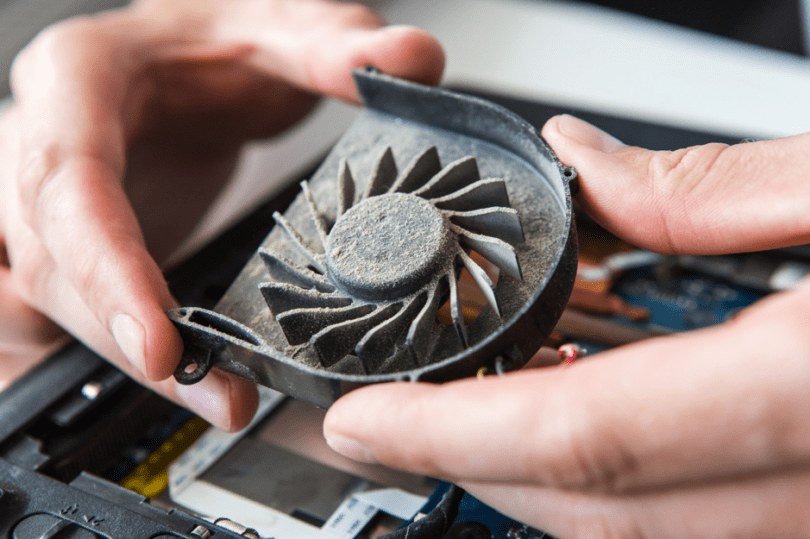
If the noise crept up gradually over months, it’s dust. Heatsinks and fan blades accumulate a felt-like mat of dust that strangles airflow, forcing fans to spin faster to move the same heat. Laptops used on beds, couches, and carpets clog fastest — soft surfaces both block intakes and feed the machine lint.
Fix it: with the laptop off, blast short bursts of compressed air through the exhaust vents. For machines over 18 months old, open the bottom panel (check a teardown video for your model) and clean the fans and heatsink fins directly. The difference is often dramatic — I’ve seen idle temps drop 15°C from cleaning alone, taking the fans from constant roar to occasional whisper. If gaming is your main heat source, our What should I do if my laptop overheats while gaming guide covers the heavier-duty cooling playbook.
Quiet it down, step by step:
- Check Task Manager/Activity Monitor — kill whatever’s hogging CPU at idle.
- Disable unnecessary startup programs and pause stuck cloud syncs.
- Blast dust from vents; deep-clean fans on machines older than 18 months.
- Switch to Balanced power mode for everyday use.
- Keep vents clear: hard surfaces only, rear slightly elevated.
When Loud Fans Mean Something’s Actually Wrong
Three warning signs deserve attention: a grinding or clicking sound (failing fan bearing — replace the fan, usually $15–$40 for the part), fans at max with low temperatures (failing temperature sensor or corrupted fan-control firmware — try a BIOS/EC reset), and sudden overheating shutdowns (dried thermal paste or a dead heat pipe, especially on machines 3+ years old).
Also check your power settings: ‘Best performance’ mode keeps clocks high and fans aggressive; ‘Balanced’ or ‘Best power efficiency’ lets the machine relax when you’re just browsing. And keep vents clear as a habit — a laptop on a desk with its rear slightly elevated runs meaningfully quieter than one flat on a table. Small habits, big acoustic payoff.
The Bottom Line
Why Does My Laptop Fan Run Loud All the Time? Pro Tips
A diagnostic trick: boot into your BIOS/UEFI settings and listen. If the fans are quiet in BIOS but loud in Windows, it’s software — a runaway process or driver issue. If they’re loud in BIOS too, it’s hardware — dust, failing fan, or dried thermal paste. This thirty-second test tells you which half of the problem to attack, and most people never think to try it.
Also check your power plan’s advanced settings: Windows lets you cap maximum processor state (Control Panel > Power Options > Change plan settings > Change advanced power settings > Processor power management). Dropping maximum processor state from 100% to 95% on battery can dramatically reduce fan noise with barely measurable performance impact — it’s the single most effective software tweak for noisy laptops, and it’s buried three menus deep where nobody finds it.
Undervolting — reducing the voltage your CPU uses — is the enthusiast’s secret weapon: same performance, less heat, less fan noise. Tools like Throttlestop (Intel) or Ryzen Controller (AMD) let you reduce voltage in small steps while stress-testing for stability. A successful undervolt can drop temperatures 5–10°C with zero performance loss. It’s safe when done gradually (worst case is a crash that resets on reboot), but read a guide specific to your chip first — the exact settings vary, and patience beats aggression in small increments.
A constantly loud fan is almost always high background CPU load or dust-clogged cooling — both fixable at home in under an hour. Check what’s actually working hard, clean the machine, and only worry about hardware failure if you hear grinding or get shutdowns. Your laptop isn’t dying; it’s just dusty and overworked.
Loud fans are your laptop communicating — usually about dust or runaway software, occasionally about failing hardware. The BIOS test tells you which, Task Manager finds the software culprits, and compressed air handles the dust. Listen to what the machine is telling you and respond accordingly; it’s usually a simple fix.