
What Is the Safest Way to Clean a Laptop Keyboard?

What is the safest way to clean a laptop keyboard? If your keys are getting shiny, sticky, or crunchy (we’ve all eaten lunch over the keyboard), the fix is easy — but laptops punish the wrong cleaning methods fast. Water in the wrong place can kill a keyboard in seconds.
I’ve cleaned dozens of laptops, including one memorable rescue after a coffee incident. Here’s the safe sequence, from everyday dusting to deep cleaning, and the mistakes that turn cleaning into a repair bill.
What Is the Safest Way to Clean a Laptop Keyboard? Start Dry
Always start with the power off and unplugged — non-negotiable. Then turn the laptop upside down and shake gently; you’d be amazed what falls out. Follow with short bursts of compressed air, holding the can upright and the straw a few inches away, working in rows across the keyboard. Finish with a soft brush (a clean makeup brush or paintbrush works perfectly) to sweep out what the air loosened.
This dry routine handles 80% of keyboard grime — dust, crumbs, pet hair — with zero risk. Do it monthly and you’ll rarely need anything stronger. The upright-can detail matters: tilting compressed air cans sprays freezing propellant liquid that can damage key mechanisms.
Safe Wet Cleaning for Sticky Keys and Shine
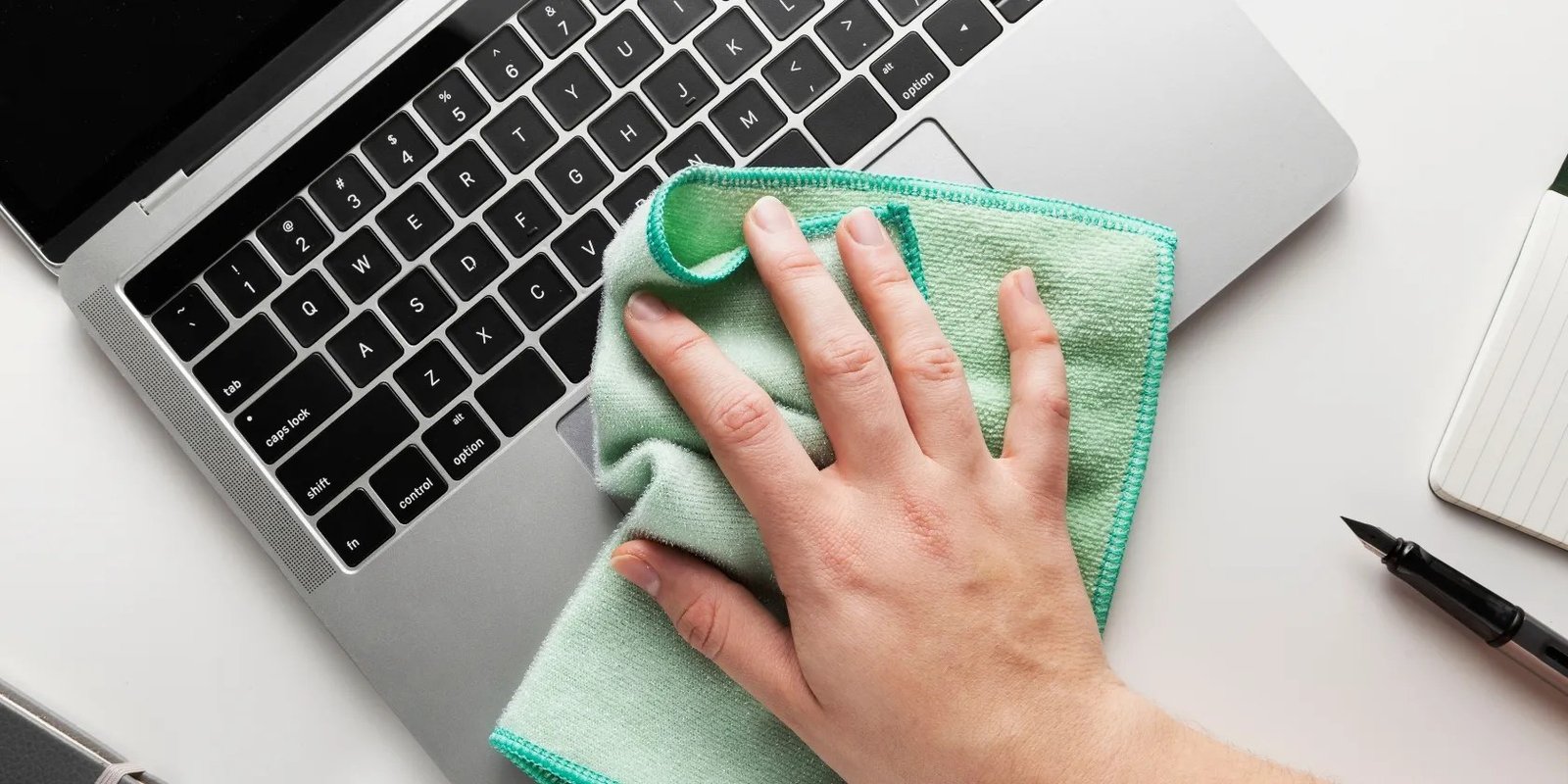
For oily shine and stickiness, dampen (not soak) a microfiber cloth with a 50/50 mix of water and isopropyl alcohol (70% concentration or higher). Wring it until barely damp — you should be able to press it to paper without leaving a wet mark. Wipe keycaps individually with light pressure, then go over the gaps with a cotton swab dampened the same way.
Isopropyl alcohol is the right cleaner because it evaporates fast, cuts oils, and is safe on keycap plastics and lettering. What to never use: bleach, ammonia-based cleaners, abrasive pads, or anything dripping wet. And never spray cleaner directly onto the keyboard — always onto the cloth first. Liquid running under keys is how cleanings become funerals.
Dealing With Spills (Act Fast)
Spilled something? Speed matters more than method. Immediately power off (hold the power button if you must), unplug everything, and flip the laptop upside down in a tent position so liquid drains out instead of in. Blot — don’t wipe — with absorbent cloths, then leave it upside down for 24–48 hours before even thinking about turning it on.
Water spills often survive with this treatment; sugary drinks and coffee are worse because residue keeps corroding after drying. If it was anything but plain water, consider a professional cleaning — the $80 service call beats a $300 keyboard replacement. Don’t use a hair dryer on hot (heat damages components); cool air or just patience is the move.
Keycaps, Deep Cleaning, and Maintenance
For a true deep clean, many laptop keycaps can be gently pried off with a plastic tool — but check your model’s repairability first, because scissor-switch mechanisms are fragile and butterfly keyboards (older MacBooks) are notoriously unforgiving. Photograph the layout before removing anything; reassembly without a reference photo is a special kind of suffering.
Preventive habits beat deep cleaning: wash hands before long typing sessions (seriously — skin oils are the main source of key shine), keep drinks in sealed containers near the laptop, and consider a thin silicone keyboard cover if you eat at your desk. A $10 cover that you toss yearly beats annual deep cleans. If your machine runs hot while you’re working, by the way, heat and dust go together — see Why does my laptop fan run loud all the time for the cooling side of maintenance.
The safe-cleaning rules, laminated:
- Power off and unplug first — every time, no exceptions.
- Dry first: shake, compressed air (can upright), soft brush.
- Dampen the cloth, never the keyboard; 50/50 water and isopropyl alcohol only.
- Never use bleach, ammonia, abrasives, or dripping-wet cloths.
- Spills: power off immediately, flip upside down, wait 24–48 hours.
The Bottom Line
What Is the Safest Way to Clean a Laptop Keyboard? Mistakes to Avoid
The mistake I see most: using way too much liquid. People soak cloths, spray cleaners directly onto keys, or use dripping cotton swabs — and liquid finds its way under keycaps onto the membrane or motherboard in seconds. The rule is absolute: the cloth should be barely damp, the cleaner goes on the cloth never the keyboard, and if you can see wetness on the keys, it’s too much. When in doubt, use less.
Second mistake: cleaning while the laptop is on or asleep. A single wrong keypress during cleaning can delete files, send half-written emails, or trigger who-knows-what. Power off completely — not sleep, off — and unplug. It takes an extra minute and eliminates an entire category of disaster. Third: impatience with spills. Turning the laptop back on ‘just to check’ after six hours instead of waiting the full 24–48 is how recoverable spills become dead keyboards. Wait the full time. Patience is the cheapest repair tool.
For mechanical keyboards on desktops, the cleaning game is entirely different — and much easier. Keycaps pop off freely, so you can remove them all, soak them in warm soapy water, scrub the board with a brush, and reassemble in twenty minutes. Photograph the layout first (trust me on this), and let everything dry completely before reassembly. Laptop keyboards demand the caution described above; desktop keyboards reward the occasional deep clean. Know which machine you’re dealing with and clean accordingly.
Clean laptop keyboards dry first, then with a barely-damp microfiber cloth and isopropyl alcohol — power off, cleaner on the cloth, never sprayed directly. That sequence handles everything from dust to sticky keys safely. And for spills, speed and patience beat every product: kill the power, drain it upside down, and wait.
Safe keyboard cleaning is mostly about restraint: power off, barely-damp cloth, cleaner on the cloth, patience with spills. The people who damage laptops cleaning them are always rushing or over-wetting. Slow down, use less liquid than you think, and your keyboard will outlast your laptop.