
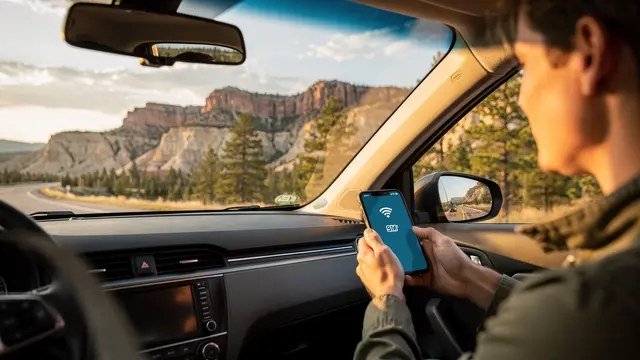
How Do I Use My Phone as a WiFi Hotspot on a Road Trip?

How do I use my phone as a WiFi hotspot on a road trip? Whether the kids need tablets in the back seat or you need to get work done from a rest stop, your phone can share its data connection in about thirty seconds. It’s one of those features everyone has and half of people never try.
I’ve run a full workday off a phone hotspot from a national park parking lot. It works — with a few caveats about data caps and battery that are worth knowing before you roll.
How Do I Use My Phone as a WiFi Hotspot on a Road Trip? The 30-Second Setup
On iPhone: Settings > Personal Hotspot > toggle on ‘Allow Others to Join.’ Set a strong Wi-Fi password (do this once and forget it). On Android: Settings > Network & Internet > Hotspot & Tethering > Wi-Fi Hotspot > toggle on. Your phone now broadcasts a Wi-Fi network; connect your laptop or tablet like any other network.
Two pro tips: rename the hotspot to something boring (not ‘Mike’s iPhone’ broadcasting to the whole rest stop), and use a real password — an open hotspot is an invitation to strangers and a data-theft risk. USB tethering (phone plugged into laptop) is even better when available: faster, more stable, and it charges the phone simultaneously.
Data Caps: The Fine Print That Bites
Here’s the catch most people discover mid-trip: many ‘unlimited’ plans cap hotspot data separately — often at 5GB to 40GB depending on the plan — then throttle hotspot speeds to a crawl. Check your plan’s hotspot allowance before the trip, not during it. Your carrier’s app shows it clearly.
Budget your data: an hour of HD video streaming is about 3GB, a video call about 1GB, but email and browsing sip mere megabytes. Download movies and shows to devices over home Wi-Fi before leaving — offline content doesn’t touch your hotspot allowance at all. If your plan’s hotspot cap is tiny, some carriers sell one-time hotspot data add-ons cheaper than overage pain. And if you’re weighing whether your plan is the problem, our Is it better to buy a phone outright or finance it monthly breakdown covers the buy-vs-finance math that applies to plan choices too.
Battery Survival and Signal Strategy
Hotspotting is brutal on battery — expect 15–25% drain per hour. Plug the phone into a car charger while hotspotting, ideally a decent one (cheap chargers sometimes can’t keep up with hotspot drain). Keep the phone somewhere with airflow, not baking on the dashboard in the sun; heat plus heavy radio use is the fastest way to trigger thermal throttling.
Signal strategy: the phone’s data speed is your hotspot’s speed, so placement matters. A phone in a cup holder gets worse signal than one near a window. In weak-signal areas, everything slows — that’s physics, not settings. Download critical stuff beforehand, and for passengers, downloaded content beats streamed content every time on rural highways.
Road-trip hotspot checklist:
- Turn on Personal Hotspot / Wi-Fi Hotspot; set a strong password and boring name.
- Check your plan’s hotspot data cap in the carrier app before leaving.
- Download movies, maps, and shows over home Wi-Fi — offline beats streamed.
- Plug into a good car charger; keep the phone cool and near a window.
- Turn the hotspot off when idle; use USB tethering for laptop work when possible.
Security and Etiquette on the Road
Keep the hotspot password-protected and turn the hotspot off when nobody’s using it — an idle hotspot still sips battery and advertises your presence. Don’t do banking over a hotspot shared with… well, it’s your own connection, so it’s actually safer than rest-stop Wi-Fi, but keep the circle small and the password strong.
For work use, your company’s VPN on the laptop adds a layer of protection. And a courtesy note: if you’re the driver, the hotspot is for passengers — set it up before you roll, then eyes on the road. Everything else can wait for the next rest stop.
The Bottom Line
How Do I Use My Phone as a WiFi Hotspot on a Road Trip? What Most People Get Wrong
The most common mistake is assuming ‘unlimited data’ means unlimited hotspot. It doesn’t — virtually every carrier caps hotspot data separately, often much lower than you’d expect, and throttles hotspot speeds to nearly unusable levels after the cap. A family streaming video in the back seat can burn through a 15GB hotspot allowance in a single afternoon. Check the cap in your carrier’s app before the trip, download content over home Wi-Fi beforehand, and treat hotspot data as precious.
People also forget the heat problem: hotspotting is among the most thermally demanding things a phone does, and a phone baking on a sunny dashboard while hotspotting will throttle itself into uselessness or shut down. Keep it shaded and ventilated — a cup holder beats the dashboard, and a cheap vent mount with airflow is ideal. If the phone gets too hot to hold comfortably, it’s too hot to hotspot reliably. Cool phone, fast hotspot; hot phone, no hotspot.
For international road trips, the hotspot calculus changes completely — roaming data rates can be brutal, and ‘unlimited’ domestic plans often include only tiny international allowances. The smart move is a local eSIM or physical SIM at your destination: $10–$20 for generous local data in most countries, set up in minutes via eSIM apps like Airalo. Your phone becomes a local hotspot without touching your home plan. It’s cheaper than one day of roaming overages and the setup takes less time than airport security.
Your phone’s hotspot takes thirty seconds to enable and can genuinely carry a road trip’s connectivity — just check your data cap first, download content ahead of time, keep the phone charged and cool, and lock it with a password. It’s the most underused feature on your phone, and road trips are where it shines.
Road-trip hotspotting works great with preparation: know your data cap, download ahead over Wi-Fi, keep the phone charged and cool, and lock it with a password. Five minutes of prep turns a potential mid-trip crisis into invisible, reliable connectivity for the whole car.