
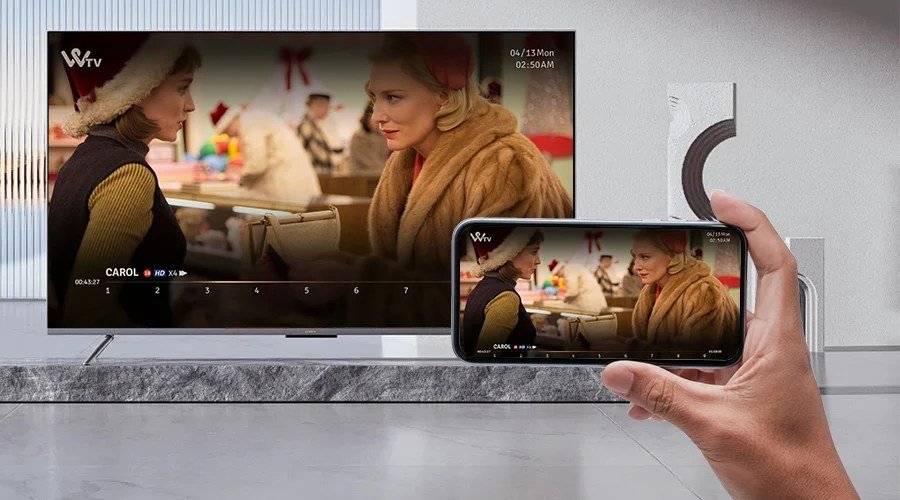
How Do I Cast My Phone Screen to My Smart TV?

How do I cast my phone screen to my smart TV? Whether it’s showing vacation photos to the family, beaming a workout video to the big screen, or putting a presentation up without a laptop, screen casting is one of those features that’s magical once it works — and maddening the one time it doesn’t.
I’ve cast from every phone to every TV type, and the secret is that there are really only three wireless systems in the world. Match yours, follow the steps, and you’re up in two minutes.
How Do I Cast My Phone Screen to My Smart TV? Know Your System
Three ecosystems, and they mostly don’t cross: Apple’s AirPlay (iPhone/iPad to Apple TV or AirPlay-compatible smart TVs — most Samsung, LG, Sony, and Roku TVs from the last five years support it), Google Cast/Chromecast (Android to Chromecast dongles, Google TV, and Cast-enabled TVs/apps), and Miracast (older Windows/Android screen mirroring, fading fast).
Check what your TV supports before anything else — it’s in the TV’s network or connection settings, or on the manufacturer’s spec page. iPhone + modern smart TV? AirPlay, almost certainly. Android + Chromecast dongle or Google TV? Google Cast. Mismatched ecosystems (iPhone to a Cast-only TV) need a third-party app or a $30 dongle to bridge the gap — know this before you troubleshoot ‘why won’t it connect.’
AirPlay (iPhone): The Two-Minute Setup
Connect both devices to the same Wi-Fi network — this is the requirement behind 90% of failures. On iPhone, swipe into Control Center, tap Screen Mirroring, and select your TV. Enter the AirPlay code if the TV shows one. That’s it; your whole screen is now on the TV.
For just video (not full mirroring), tap the AirPlay icon inside apps like YouTube or Photos — this streams the video directly, in higher quality and with less battery drain than mirroring your whole screen. If the TV doesn’t appear: confirm same Wi-Fi (not a guest network — guest networks often block device-to-device connections), restart both devices, and check the TV’s AirPlay setting is enabled. Apple’s support guide at Apple's official iPhone repair pricing has the model-specific details.
Google Cast (Android): Equally Simple
Same prerequisite: phone and TV/Chromecast on the same Wi-Fi. On Android, swipe down Quick Settings and tap Screen Cast (or Smart View on Samsung), then pick your TV. Or cast from inside apps via the Cast icon — again, in-app casting gives better quality than full-screen mirroring.
Chromecast with Google TV dongles ($30–$50) are the universal fix for ‘dumb’ TVs — they add full Cast support to anything with an HDMI port and are worth every penny if your TV’s built-in apps are slow or outdated. Pro tip: while casting video from an app, your phone is just a remote — you can use it normally, take calls, even turn the screen off without interrupting playback.
When Casting Fails: The Fix List
The holy trinity of casting failures: different Wi-Fi networks (phone on 5GHz, TV on 2.4GHz with client isolation — put both on the same band), VPN active on the phone (VPNs break local device discovery — pause it while casting), and outdated firmware (update the TV’s software; manufacturers fix Cast/AirPlay bugs quietly).
Still failing? Restart the phone, the TV (full power cycle, not standby), and the router — in that order. As a last resort, a wired connection never fails: iPhone via Lightning/USB-C to HDMI adapter, Android via USB-C to HDMI (if your phone supports DisplayPort alt mode). And if your TV’s smart features are the bottleneck generally, our Is it worth paying extra for a 4K TV or is HD enough 4K TV guide covers when an upgrade — or a streaming stick — is the real fix.
Casting quick reference:
- iPhone to modern smart TV: Control Center > Screen Mirroring (AirPlay).
- Android to Chromecast/Google TV: Quick Settings > Screen Cast.
- In-app Cast/AirPlay buttons beat full-screen mirroring for video quality.
- Both devices must be on the same Wi-Fi — guest networks and VPNs break discovery.
- Nuclear option: HDMI adapter cable — wired never fails.
The Bottom Line
How Do I Cast My Phone Screen to My Smart TV? Pro Tips
Pro tip: for regular video watching, skip mirroring entirely and use the TV’s built-in apps or a streaming stick instead. Mirroring is a battery-draining, quality-compromised workaround — native apps stream directly in full quality while your phone stays free. Casting shines for the things apps can’t do: showing photos, sharing a presentation, beaming a workout video, or putting a video call on the big screen. Use the right tool for each job.
Also: if casting is a regular need, a $30–$50 Chromecast or Fire Stick pays for itself in saved frustration. Built-in TV casting implementations are notoriously flaky — manufacturers update them rarely and debug them never — while dedicated sticks get constant updates and just work. The cheapest upgrade in home entertainment isn’t a new TV; it’s the streaming stick that makes your current TV behave. And keep your phone’s OS updated; casting protocols get quiet bug fixes constantly.
For presentations, learn the ‘present’ mode in your phone’s office apps rather than just mirroring the screen — PowerPoint and Google Slides mobile apps have dedicated presentation views that show your notes on the phone while the slides fill the TV. It looks dramatically more professional than mirroring your home screen with notifications popping up mid-slide (turn on Do Not Disturb regardless — nothing kills a presentation like a text preview). The right mode for the job, every time.
Casting is easy once you match the ecosystem — AirPlay for iPhone, Google Cast for Android — and keep both devices on the same Wi-Fi with no VPN in between. Use in-app casting for video, full mirroring for everything else, and keep a $30 Chromecast or HDMI adapter around for stubborn TVs. Two minutes of setup, endless big-screen payoff.
Casting works best when you match the method to the moment: native apps for shows, mirroring for sharing, a cheap streaming stick for reliability. Keep both devices on the same network, pause the VPN, and remember the HDMI cable as the eternal fallback. Big-screen phone content in two minutes, whenever you want it.