
Introduction
Medal is one of the most popular tools for capturing game highlights. With one hotkey, you can save that amazing clutch, that funny fail, or that once-in-a-lifetime play. But here is the problem: clips saved only on Medal’s servers or on one device can be lost. Maybe you reinstall Windows, switch to a new PC, or your account has an issue.
That is why backing up your clips matters. In this guide, I will show you every way to back up Medal clips — downloading them to your PC, uploading them to cloud storage, and saving them on your phone. Let us make sure your highlights are safe.
Direct Answer: How Do You Back Up Medal Clips?
To back up Medal clips, open the Medal app, go to your library, and download each clip to your computer as an MP4 file. Then copy those files to cloud storage like Google Drive or Dropbox. You can also turn on Medal’s cloud upload so new clips are saved to the cloud automatically.
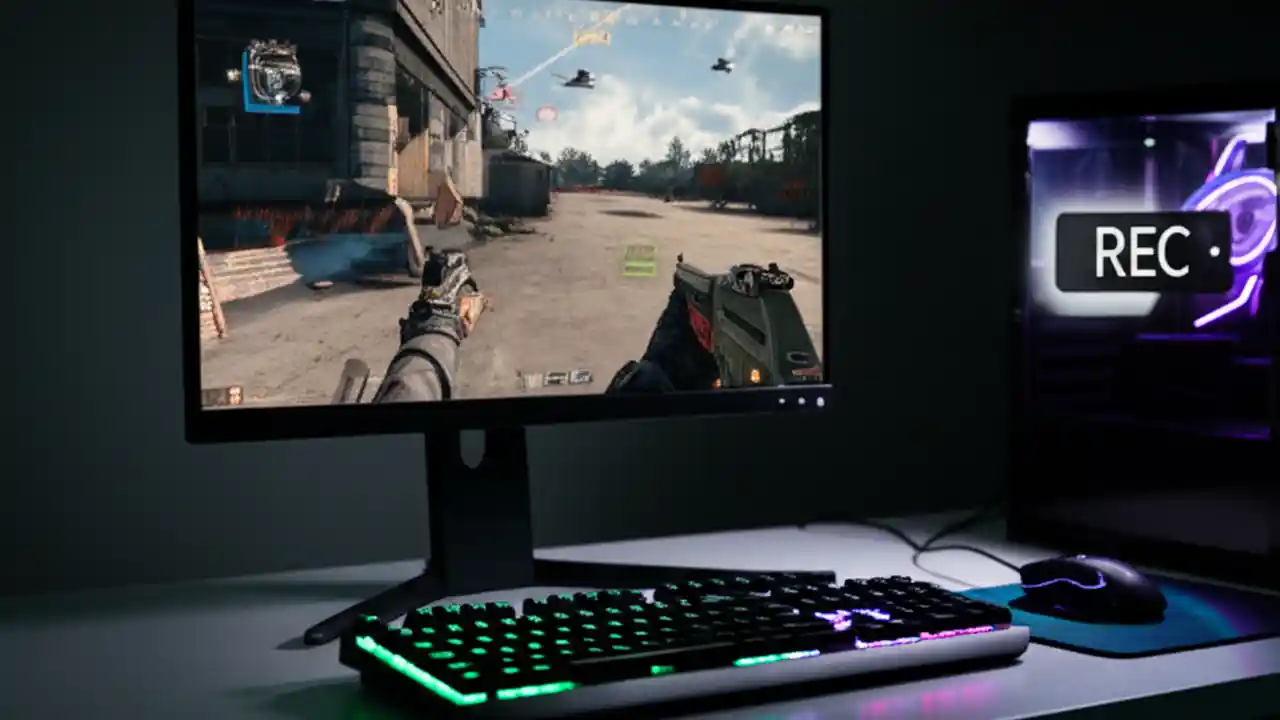
What Is Medal?
Medal (medal.tv) is a free app for PC and mobile that records gameplay. It works with most popular games — from Fortnite and Valorant to Minecraft and Roblox. You set a hotkey, and pressing it saves the last few seconds or minutes of gameplay as a clip.
Medal stores your clips in two places:
- On your computer: raw recordings are saved in a local folder, usually under Documents or your user folder.
- On Medal’s cloud: clips you choose to upload are saved online and get a shareable link.
Both can disappear. Local files vanish when you wipe your drive. Cloud clips depend on your account and Medal’s servers. A real backup means having your own copies somewhere else.
How to Download Medal Clips to Your PC
This is the simplest backup method. It saves each clip as a normal video file you can copy anywhere.
Step 1: Open the Medal App
Launch Medal on your PC and sign in. Wait for it to load your library — you will see a grid of your clips.
Step 2: Find the Clip You Want to Back Up
Browse your library or use the search bar to find the clip. You can sort by game or date to find it faster.
Step 3: Click the Download Button
Open the clip, then click the download icon (usually a downward arrow). Medal will save the clip as an MP4 file to your chosen download folder. Repeat this for each clip you want to keep.
Tip: there is no bulk-download button in most versions of Medal, so for a large library, you may need to download clips in small batches. Start with your favourites first.
Step 4: Organise Your Downloads
Create a folder on your PC called “Medal Backups” and sort clips into subfolders by game. This makes them easy to find later — and much easier to upload to the cloud in the next step.
How to Back Up Medal Clips to Cloud Storage
Once clips are on your PC, copy them to the cloud so they survive even if your computer dies.
Step 1: Pick a Cloud Service
Google Drive, Dropbox, OneDrive, and iCloud all work fine. Video files can be large, so check your free storage limit first. A 30-second 1080p clip is usually 10 to 50 MB.
Step 2: Upload Your Clip Folder
Drag your “Medal Backups” folder into the cloud drive’s web page or desktop app. Uploading may take a while if you have many clips — let it run overnight if needed.
Step 3: Turn On Medal’s Cloud Upload for New Clips
In the Medal app, open Settings and look for the cloud or upload option. Turn on automatic cloud upload. From now on, new clips will be saved to Medal’s cloud as well as your PC, giving you a built-in safety net. You can find this explained in more detail on Medal’s official website.
How to Save Medal Clips on Your Phone
If you use Medal on mobile, or want clips on your phone for sharing:
- In the mobile app: open a clip and tap the share or download icon to save it to your phone’s gallery.
- From the website: open the clip’s share link on your phone’s browser, then use your browser’s download option.
- Automatic phone backup: turn on Google Photos or iCloud Photos backup so anything saved to your gallery is copied to the cloud.
Tips for Keeping Your Clips Safe
- Back up regularly. Do a monthly backup session — download new clips and copy them to the cloud. It takes ten minutes and saves hours of regret.
- Keep two copies. The golden rule: one copy on your PC and one in the cloud. If one fails, you still have the other.
- Name files clearly. Rename important clips with the game and date, like “valorant-clutch-2026-01-15.mp4”. Future you will thank present you.
- Check your cloud quota. Free cloud plans fill up fast with video. Delete duplicates and trim clips you do not need.
Common Mistakes to Avoid
- Trusting only the Medal cloud. Medal’s cloud is convenient, but it is not a true backup. If your account is locked or you delete a clip by accident, it is gone. Always keep your own copies.
- Deleting local files too soon. Do not delete the local recording until you have confirmed the backup copy plays correctly. Open the copied file and watch a few seconds.
- Forgetting about storage space. Clips pile up fast. If your drive is full, Medal may fail to save new recordings. Clean out old clips regularly.
For more game recording help, check out our guide to the best free screen recorders for PC and how to clip the last 30 seconds on any device.
FAQs
Are Medal clips saved automatically?
Medal saves recordings locally on your PC by default. Cloud upload only happens for clips you choose to upload, or if you turn on automatic cloud upload in settings.
Where are Medal clips stored on my PC?
By default, Medal stores clips in your user folder — check Settings in the app for the exact path. You can change the save location in Settings too.
Can I back up all my Medal clips at once?
Medal does not offer a one-click bulk download for your whole library. Download clips in batches, starting with your favourites, then copy the folder to cloud storage.
How do I share a Medal clip after backing it up?
Upload the MP4 to YouTube, TikTok, or Discord directly. If you want a Medal link, re-upload the clip to Medal from the app.
Conclusion
Backing up Medal clips is simple: download them as MP4 files, organise them in a folder, and copy that folder to cloud storage. Turn on Medal’s automatic cloud upload for extra safety, and do a quick backup session once a month.
Your highlights are worth keeping. Spend ten minutes on a backup today, and you will never have to worry about losing that perfect play again.