
Introduction
Grim Dawn throws a lot of skills at you. Between your two masteries, devotion procs, and item-granted abilities, your character can end up with a dozen active skills — and they are useless if you cannot reach them in combat. That is what the hotbar is for.
In this guide, I will show you exactly how to add skills to your hotbar in Grim Dawn, how to rebind the keys, and how to set up extra skill bars for complex builds. It takes less than a minute once you know how.
Direct Answer: How Do You Add Skills to the Hotbar in Grim Dawn?
To add skills to your hotbar in Grim Dawn, press S to open the skills window, then drag a skill from the list onto a hotbar slot at the bottom of the screen. You can also right-click a hotbar slot and pick a skill from the menu that appears.
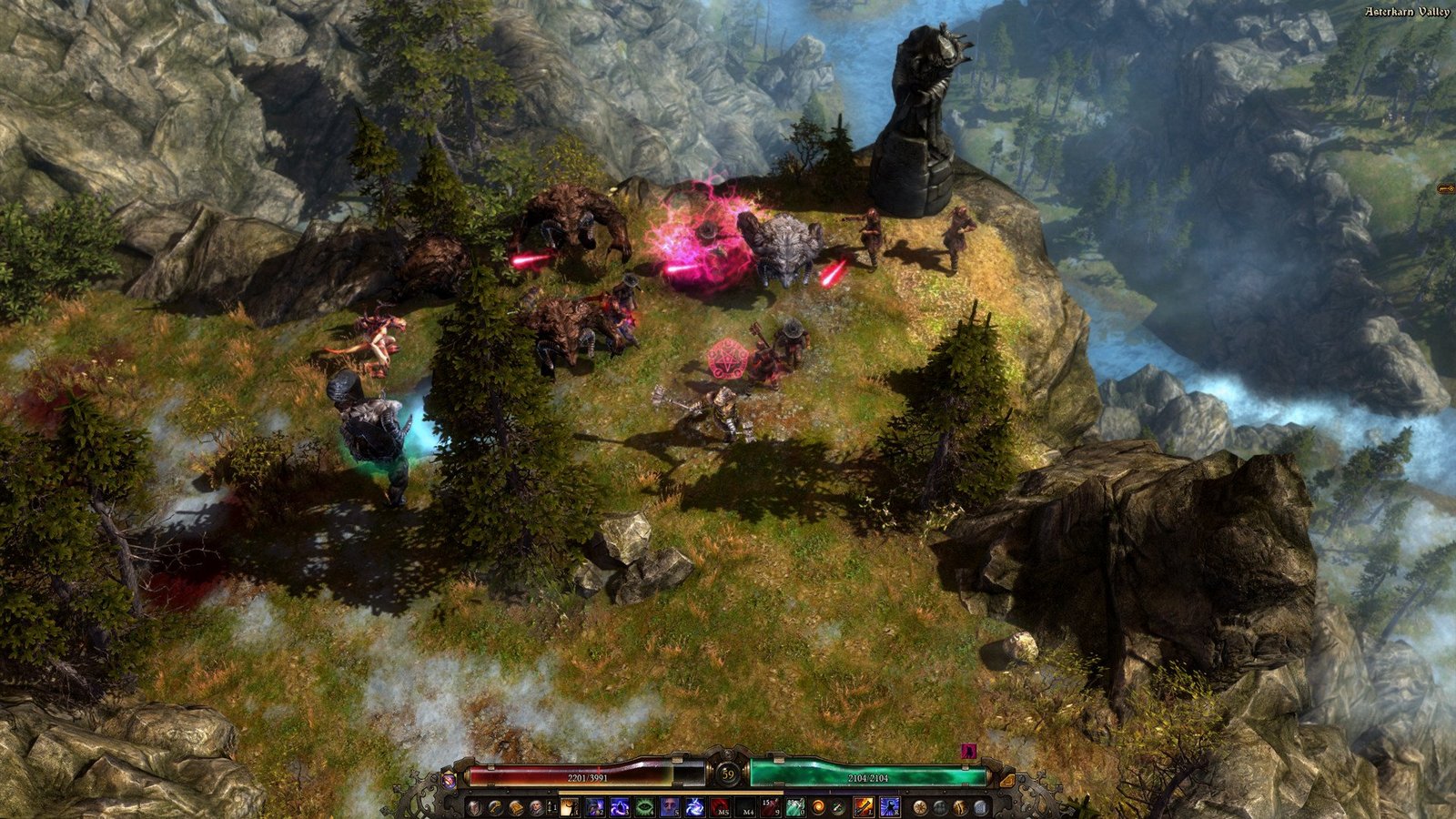
What Is the Hotbar in Grim Dawn?
The hotbar is the row of slots at the bottom of your screen. Each slot is linked to a key (1 through 0 by default). When you press the key, your character uses the skill in that slot.
Grim Dawn gives you:
- One main hotbar with 10 slots, always visible.
- A second hotbar you can toggle on for 10 more slots — great for buff-heavy builds.
- Devotion and item skills can also be assigned here, not just mastery skills.
If you have ever played Diablo or similar action RPGs, the idea is the same. You can read more about the genre on Wikipedia’s action RPG page.
How to Add Skills to the Hotbar: Step-by-Step
Step 1: Open the Skills Window
Press S on your keyboard. This opens the skills panel, showing all the skills from your chosen masteries, plus devotion skills and item-granted skills.
Step 2: Drag a Skill to the Hotbar
Click and hold a skill icon, then drag it down to any empty hotbar slot at the bottom of the screen. Release the mouse button to drop it in. That is it — the skill is now assigned.
Alternative method: right-click any hotbar slot to open a selection menu, then click the skill you want. This is handy if dragging feels fiddly.
Step 3: Test It in Combat
Close the skills window and press the slot’s key (1–0) to use the skill. Make sure it fires correctly before heading into a tough fight.
Step 4: Rearrange as Needed
Drag skills between slots to reorder them. Put your most-used attack on an easy key (like 1 or 2) and situational skills further along the bar.
How to Enable the Second Hotbar
Ten slots not enough? Grim Dawn has a second bar:
- Open the Game Options menu (press Esc, then Options).
- Go to the Interface tab.
- Turn on “Show Second Hotbar”.
- A second row of 10 slots appears above the first. Assign skills to it the same way — by dragging.
Use the second bar for buffs, auras, and long-cooldown abilities you do not need every second. Keep your main damage skills on the primary bar.
How to Rebind Hotbar Keys
Do not like the default 1–0 keys? Change them:
- Press Esc and open Options, then the Key Bindings tab.
- Find the hotbar slot entries and click one to rebind it.
- Press your preferred key. Many players move key skills to Q, E, R, or mouse buttons for faster access.
Tips for Setting Up Your Hotbar
- Group by type. Put your main attack first, movement skill second, then buffs, then situational skills. Muscle memory builds faster with a consistent layout.
- Assign devotion procs. Devotion skills that trigger automatically do not need hotbar slots — but ones you activate manually do. Check each devotion skill’s description.
- Do not forget potions. Health and energy potions can go on the hotbar too, so you can chug one without opening your inventory mid-fight.
- Use the second bar for toggles. Auras and toggle buffs are perfect second-bar residents — set them once and forget them.
Common Mistakes to Avoid
- Leaving new skills unassigned. Every time you invest a point in a new active skill, put it on the bar immediately. An unassigned skill might as well not exist.
- Overcrowding one bar. If you are struggling to reach keys in combat, enable the second hotbar and spread things out instead.
- Forgetting item skills. Some equipment grants active abilities. These appear in the skills window under a separate section — drag them to the bar like any other skill.
Want more Grim Dawn help? Check out our beginner’s build guide for Grim Dawn and how devotion points work in Grim Dawn. You can also visit the official Grim Dawn website for news and updates.
FAQs
How do I remove a skill from the hotbar?
Drag the skill icon off the hotbar and release it anywhere else, or right-click the slot and choose the empty option. The skill itself stays learned — only the assignment is removed.
Can I put the same skill on two hotbar slots?
No, each skill can only occupy one slot at a time on a given bar. Assigning it to a new slot moves it there.
Why can’t I drag a skill to the hotbar?
Make sure the skill is actually learned (has at least one point invested) and is an active skill. Passive skills cannot go on the hotbar — they work automatically.
How many hotbar slots does Grim Dawn have?
Ten on the main bar, plus ten more if you enable the second hotbar in Interface options — 20 total.
Do controller players get a hotbar?
Yes. On controllers, skills are assigned to button combinations through the same skills window. The layout adapts to gamepad input automatically.
Can I save different hotbar setups?
Grim Dawn does not have built-in hotbar profiles, so most players keep one layout per character. If you respec, just drag the new skills into place.
Conclusion
Adding skills to your hotbar in Grim Dawn is as simple as pressing S and dragging. Enable the second bar if you need more room, rebind keys to suit your hands, and keep your layout consistent.
With your skills where you can reach them, you will play faster, safer, and have a lot more fun. Now go clear some dungeons.