
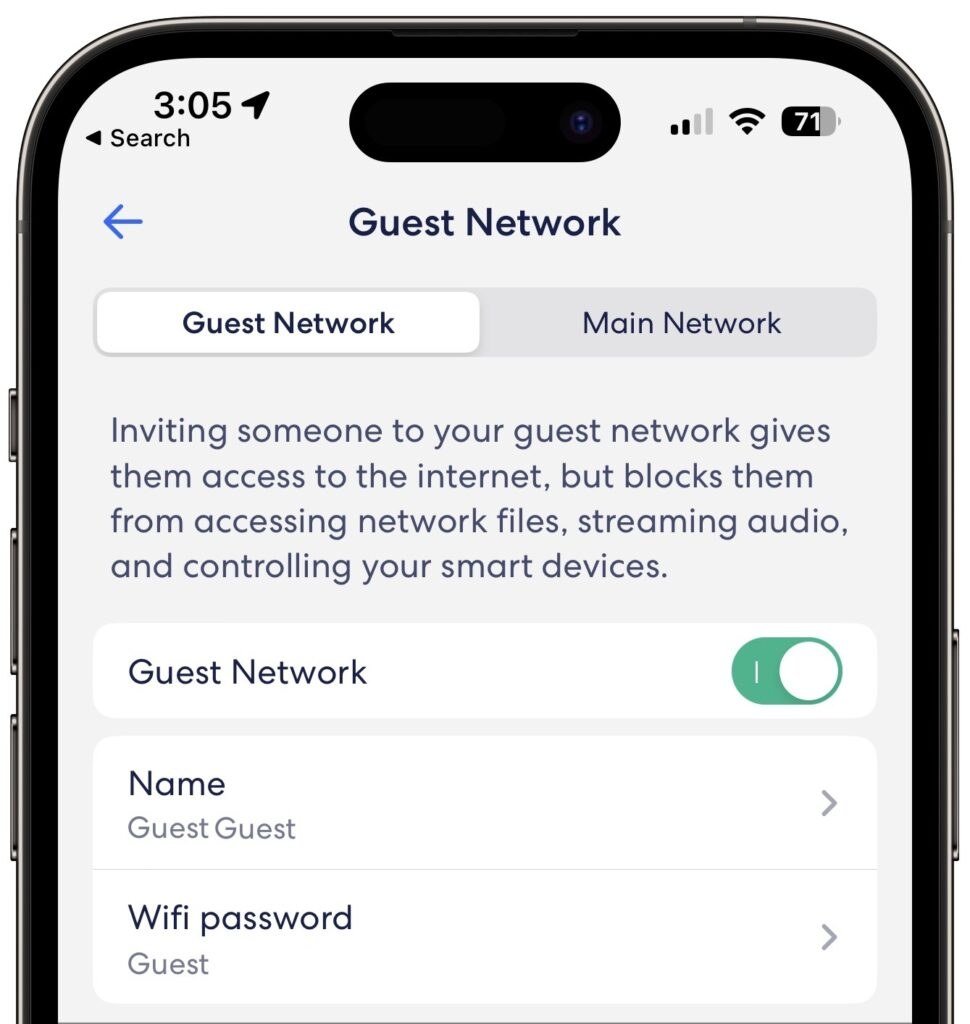
How Do I Set Up a Guest WiFi Network for Visitors?

How do I set up a guest WiFi network for visitors? It’s one of those ten-minute tasks with outsized payoff: guests get internet without your password, and your private network — with its shared drives, printers, and smart-home gadgets — stays safely isolated from your cousin’s malware-riddled laptop.
I set mine up before a holiday gathering and it’s been silently earning its keep ever since. Here’s the setup plus the security details that make it actually worth doing.
How Do I Set Up a Guest WiFi Network for Visitors? The Basic Steps
Log into your router’s admin page (usually 192.168.1.1 or 192.168.0.1 — the address and default login are on the router’s sticker). Look for ‘Guest Network,’ ‘Guest Wi-Fi,’ or ‘Guest Access’ — it’s under Wireless settings on most routers. Enable it, give it a name (SSID) like ‘SmithHouse-Guest,’ set a simple password, and save.
That’s genuinely the whole basic setup on modern routers — the feature is built in and takes five minutes. Some routers let you set time limits or bandwidth caps for guests; nice touches if your router offers them, but not essential. If your router is ancient enough to lack the feature, that’s a sign it’s time for an upgrade — our How can I speed up a slow WiFi connection at home Wi-Fi guide covers when new hardware earns its keep.
The Security Settings That Make It Worthwhile
The entire point of a guest network is isolation — so verify yours actually isolates. Look for ‘AP isolation,’ ‘client isolation,’ or ‘allow guests to access local network’ and set it to block local access. This keeps guest devices on the internet but off your private network: they can’t see your computers, NAS, printers, or smart-home devices.
Use WPA2 or WPA3 security (never leave a guest network open — you’re liable for what passes through your connection). Give it a real password, different from your main network’s, and don’t reuse passwords. Some routers offer a QR code for guest access — print it and stick it on the fridge; guests scan and join without you reciting passwords. Elegant and secure.
What Guests Can and Can’t Do (Set Expectations)
A properly configured guest network gives internet access only — no printing to your printer, no accessing your media server, no seeing your smart-home gadgets. That’s by design. If a guest needs to print something, have them email it to you or use a cloud print workaround rather than punching holes in the isolation.
Bandwidth: guests share your connection, so one’s 4K streaming affects everyone. Most routers let you throttle guest bandwidth — setting guests to 50–70% of total keeps things civil during parties. And the legal note: you’re responsible for activity on your connection, so the password (not open access) plus your router’s logs are your paper trail. For the truly cautious, some routers offer one-click guest network scheduling — on for the party, off after.
Guest network setup checklist:
- Enable Guest Network in router settings; name it clearly (YourName-Guest).
- Set WPA2/WPA3 with a password different from your main network.
- Enable AP/client isolation — guests get internet, not your local devices.
- Optional: bandwidth limits, schedules, and a fridge QR code for easy joining.
- Consider moving IoT gadgets to the isolated network too.
Beyond the Basics: When to Level Up
If guests are frequent (Airbnb hosts, I’m looking at you), consider a separate access point or a mesh node dedicated to guests — cleaner isolation and easier management. Captive portals (‘enter your email for Wi-Fi,’ like hotels use) are available on prosumer routers and add a professional touch plus a contact list.
For smart-home-heavy households, the guest network doubles as an IoT quarantine: put your smart bulbs, cameras, and plugs on the guest/isolated network instead of your main one. IoT devices are notoriously insecure; isolating them from your computers is genuine defense-in-depth. One guest network, two security wins. If you’re reworking your whole network setup, our How do I reset my WiFi router without losing my settings router guide covers the admin-panel fundamentals.
The Bottom Line
How Do I Set Up a Guest WiFi Network for Visitors? Pro Tips
Pro tip: generate a QR code for your guest network and frame it — seriously. Free QR generators encode the network name and password; guests scan it with their phone camera and join instantly, no password reciting, no spelling ‘S-H-A-R-K-1-9-8-7’ across the room. Print it nicely, put it in a small frame by the entrance or on the fridge. It’s the kind of touch guests remember, and it costs nothing.
Also: schedule the guest network if your router supports it. Leaving it on 24/7 is fine, but scheduling it for typical visiting hours (or toggling it on only when guests arrive via the router app) reduces your attack surface and keeps freeloaders — like the neighbor who’s been on it since 2019 — from lingering. And change the guest password yearly; it’s low-stakes security hygiene that takes two minutes and keeps the network genuinely yours.
If your router doesn’t have a guest network feature, that’s a strong signal it’s time to upgrade — any router from the last decade includes it, and its absence means the hardware is missing years of security updates too. A $120–$180 modern router buys you the guest network, WPA3 security, better range, and firmware that isn’t a museum piece. Networking hardware is infrastructure; running decade-old infrastructure is like driving on decade-old tires. Upgrade on a schedule, not on failure.
A guest Wi-Fi network takes ten minutes to set up and permanently solves the ‘what’s your password’ dance while protecting your private network. Enable it, isolate it, password it, and print the QR code for the fridge. Your devices stay private, your guests stay connected, and nobody has to spell out a 20-character password ever again.
Guest Wi-Fi is hospitality plus security: isolated network, real password, QR code on the fridge, and a yearly password refresh. Ten minutes of setup, permanent convenience, and your private network stays private. Your guests get online in seconds; your devices stay invisible. Everyone wins.