
How Do I Scan Documents With My Phone for Free?

How do I scan documents with my phone for free? You don’t need a scanner, a printer, or a paid app — your phone already has a document scanner built in, and it’s genuinely good. I’ve scanned contracts, receipts, and a truly absurd number of school forms with nothing but my phone.
Most people don’t know the feature exists because it’s tucked inside apps they already have. Here’s where to find it and how to get clean, professional-looking scans.
How Do I Scan Documents With My Phone for Free? iPhone: It’s in Notes
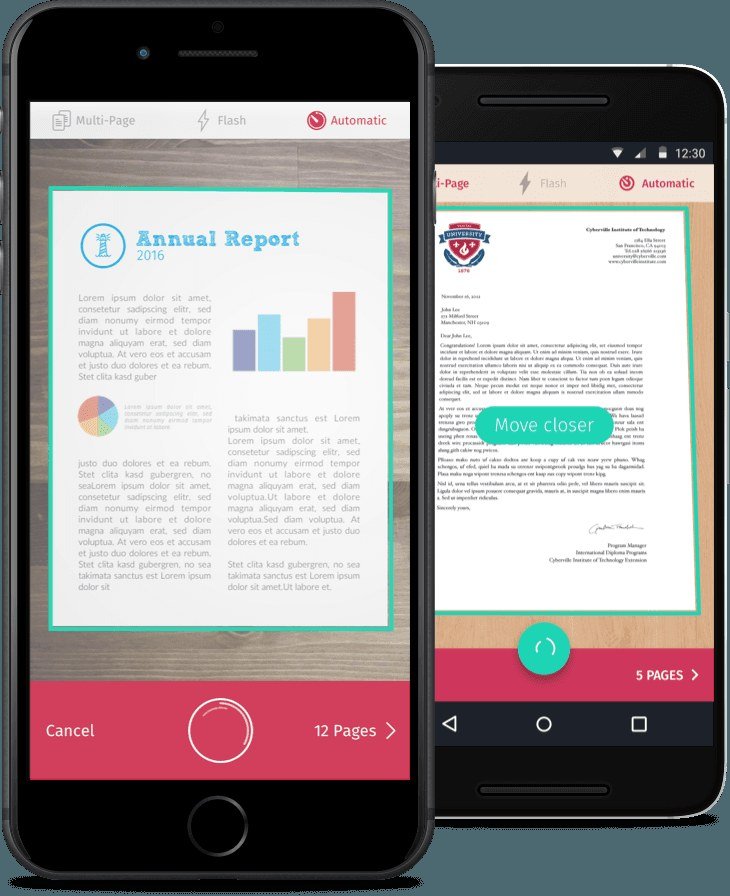
On iPhone, open the Notes app, start a new note, tap the paperclip (attachment) icon, and choose ‘Scan Documents.’ Point the camera at the page — the phone auto-detects edges, snaps the shot, and lets you adjust the corners. Tap Save, and you’ve got a clean, cropped, perspective-corrected PDF sitting in your note, ready to share or AirDrop.
The auto-capture is good but not perfect: for best results, shoot on a contrasting background (dark table for white paper), keep the phone parallel to the page, and ensure even lighting without harsh shadows. You can scan dozens of pages into one PDF — it handles multi-page documents beautifully. No downloads, no accounts, no watermarks. It’s been there since iOS 11 and people still don’t know.
Android: Google Drive Has You Covered
On Android, open Google Drive, tap the + button, and choose ‘Scan.’ Same deal: auto edge-detection, perspective correction, multi-page PDFs saved straight to your Drive. It’s clean, free, and your scans are instantly backed up and shareable.
Samsung phones also have scanning built into the Camera app (look for the document scan mode or the ‘T’ text-recognition icon), and many manufacturers include it in their gallery apps. If your phone’s built-in option feels clunky, the free tier of Adobe Scan or Microsoft Lens is excellent — both do edge detection, OCR (searchable text), and cloud saving without charging. Google’s support pages at Google's official support guides document the Drive scanner if you need visuals.
Getting Professional-Quality Results
The difference between an amateur scan and a professional one is all technique. Lighting first: natural indirect daylight beats overhead fluorescents — shoot near a window, and watch for your own shadow falling across the page. Background second: maximum contrast between paper and surface. Stability third: brace your elbows or rest the phone on a stack of books for perfectly parallel shots.
For receipts and small documents, switch to the close-focus range and tap to focus on the text. For books, a second phone as a weight on the opposite page keeps things flat. And always review the scan before sending — zoom in on the text; if it’s blurry, reshoot immediately rather than discovering it after you’ve left. Two minutes of care beats apologies later.
OCR, Signing, and Going Paperless
Modern phone scanners do OCR — optical character recognition — turning your scan’s text into searchable, copyable text. In iOS Notes, long-press a scanned page to copy text from it; Google Drive and Adobe Scan offer similar extraction. This turns a filing cabinet of paper into a searchable archive, which is genuinely transformative for receipts, contracts, and medical records.
You can also sign documents: on iPhone, open the scanned PDF, tap the markup icon, add a signature, and send it back — no printing, no ‘scan the signed scan.’ Build a simple system: scan immediately, name files consistently (2026-10-17_ElectricBill.pdf), store in one cloud folder. Fifteen seconds per document, and paper clutter stops accumulating. If you’re digitizing photos too rather than documents, our How do I transfer photos from my old phone to a new phone transfer guide pairs well with a full digital-declutter project.
Pro scanning checklist:
- iPhone: Notes app > paperclip > Scan Documents. Android: Google Drive > + > Scan.
- Shoot on a contrasting background with even, indirect lighting.
- Keep the phone parallel to the page; brace it for sharpness.
- Review every scan zoomed-in before sending — reshoot beats regret.
- Use OCR to make scans searchable; sign PDFs with markup, no printer needed.
The Bottom Line
How Do I Scan Documents With My Phone for Free? Pro Tips
Pro tip: build a naming and filing habit from day one, because a phone full of ‘Scan 2026-10-17 14.32.pdf’ is barely better than the paper pile. Name files as you scan — ‘Electric-Bill-Oct-2026.pdf’ takes five seconds — and save to one dedicated cloud folder. Future-you searching for a receipt in a hurry will be grateful. The scan is only half the job; the organization is what makes it useful.
Also: your phone can scan more than paper. Whiteboards after meetings (snap before they’re erased), business cards at conferences (many scanner apps extract contact info), book pages for research (faster than photocopying and searchable with OCR), and even old family photos (there are dedicated photo-scan modes that remove glare). Once scanning is frictionless, you’ll find uses everywhere — the best tool is the one that’s always in your pocket.
Your phone’s scanner can also digitize the paper that’s already piling up — set aside one weekend afternoon for a scanning marathon. Work through the filing cabinet, the junk drawer, the shoebox of receipts: scan, name, file, shred (a crosscut shredder for anything with account numbers). Most households can eliminate 80% of their paper in a single afternoon, and the digital versions are searchable, backed up, and take zero physical space. It’s one of the highest-satisfaction chores in modern life.
Your phone is already a very good scanner — iPhone users have it in Notes, Android users in Google Drive, and both are free with no watermarks. Learn the two-minute technique (lighting, contrast, parallel shots), use OCR to make everything searchable, and the dusty flatbed scanner can finally retire to the closet.
Phone scanning is genuinely professional quality once you learn the technique: good light, contrasting background, steady parallel shots, and immediate organized filing. The scanner you already own beats the flatbed gathering dust — use it, name things properly, and watch the paper piles disappear.