
How Do I Stop Apps From Tracking My Location on iPhone?

How do I stop apps from tracking my location on iPhone? If you’ve ever talked about hiking boots and then seen hiking boot ads, you’ve felt the creepiness — and while that’s usually coincidence plus ad profiling, your location data genuinely is collected, stored, and sold by an enormous number of apps.
I audited my own iPhone’s location permissions last year and found 34 apps with access, most of which had no business knowing where I am. Twenty minutes of cleanup later, that number was six. Here’s the full lockdown.
How Do I Stop Apps From Tracking My Location on iPhone? The Main Switchboard
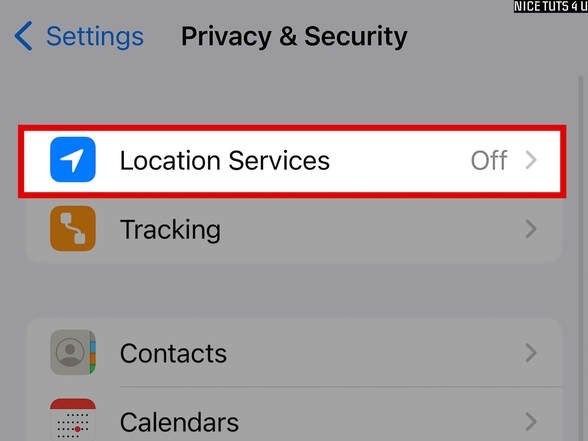
Go to Settings > Privacy & Security > Location Services. This single screen lists every app that’s ever asked for your location and exactly what permission it holds. Tap each app and set it to ‘Never’ unless it genuinely needs location — navigation, weather, ride-sharing, delivery. Everything else gets ‘Ask Next Time’ or ‘Never.’
The key setting is ‘While Using the App’ versus ‘Always.’ ‘Always’ lets apps track you in the background 24/7 — this is the permission data brokers love. Social media, shopping, and ‘free’ utility apps have no legitimate need for Always; demote them all. Your iPhone periodically reminds you about Always-permission apps — when it does, treat it as a prompt to revoke, not a notification to dismiss. Apple’s privacy documentation at Apple's official iPhone repair pricing details what each setting does.
System Services: The Hidden Location Collection
Scroll to the bottom of Location Services and tap System Services — this is where iOS itself collects location, and several items deserve your attention. ‘iPhone Analytics,’ ‘Routing & Traffic,’ and ‘Improve Maps’ all send location data to Apple; disable them if you’d rather not contribute. ‘Significant Locations’ keeps a detailed log of everywhere you go — it’s encrypted and on-device, but you can clear the history and toggle it off.
Also check ‘Location-Based Alerts’ and ‘Location-Based Suggestions’ — convenient, but they’re constant location consumers. And don’t miss Settings > Privacy & Security > Tracking: turn off ‘Allow Apps to Request to Track’ to kill the cross-app ad tracking prompts at the source. These two screens together cover nearly all iOS-level collection.
The App-Level Cleanup Most People Skip
Beyond permissions, check what apps already know. Google Maps: tap your profile > Your data in Maps > delete Location History and turn off future collection. Social apps: review and delete location tags on old posts — a year’s worth of check-ins is a movement profile. Photo apps: strip location metadata before sharing (on iPhone, tap the share arrow on a photo > Options > toggle off Location).
Then delete the worst offenders outright. Free flashlight apps, random games, and sketchy utilities with Always location access aren’t providing $0 of value in exchange for 24/7 tracking — they’re data-collection businesses with an app attached. If an app’s business model is unclear and it wants your location, that’s your answer about its business model.
The iPhone location lockdown checklist:
- Settings > Privacy & Security > Location Services: set everything non-essential to Never.
- Demote all ‘Always’ permissions to ‘While Using’ — background tracking is the real prize.
- System Services: disable iPhone Analytics, Improve Maps, and clear Significant Locations.
- Turn off ‘Allow Apps to Request to Track’ to kill ad-tracking prompts entirely.
- Delete location history in Google Maps; strip location from photos before sharing.
Staying Private Going Forward
Make permission hygiene a habit: when a new app asks for location, default to ‘While Using’ or ‘Ask Next Time’ — you can always grant more later, but you can’t un-collect data already taken. Review Location Services twice a year; iOS updates sometimes reset or add new collection points.
For the truly cautious: use a VPN on public Wi-Fi (location via IP is coarse but real), disable Bluetooth when not in use (retailers track via Bluetooth beacons), and remember that your carrier always knows your approximate location — that’s infrastructure, not a setting you can toggle. Perfect privacy isn’t achievable, but going from 34 trackers to 6 is a massive, practical win. If spammy texts followed your data around, How can I tell if a text message link is a scam covers fighting back on that front.
The Bottom Line
How Do I Stop Apps From Tracking My Location on iPhone? The Fine Print
The fine print most people miss: turning off location permissions doesn’t stop all location tracking. Your carrier always knows your approximate location (that’s how cell networks function), Wi-Fi network names reveal location to apps with network access, and Bluetooth beacons in stores track foot traffic without GPS at all. Location Services controls the precise GPS feed — the most valuable one — but it’s one layer in a stack. True location privacy requires the carrier-level acceptance that some tracking is infrastructural.
Also: Apple’s own Significant Locations log is worth clearing periodically even if you leave the feature on — it’s a detailed history of everywhere you’ve been, sitting on your phone. Encrypted and on-device, yes, but it’s there. And remember that photos carry location metadata by default; every photo you text or post can reveal where it was taken unless you strip it. The location permission is the front door, but metadata and networks are the side windows — lock those too.
Review which apps have Bluetooth access too — retailers and malls use Bluetooth beacons to track foot traffic and link it to your identity when combined with their apps. On iPhone, Settings > Privacy & Security > Bluetooth shows which apps requested it; most have no legitimate need. Deny liberally. And turn Bluetooth off entirely when you’re not using it — it’s not just a privacy win, it’s a small battery win too. The radios you aren’t using are just attack surface and power drain.
Your iPhone gives you excellent location controls — most people just never open them. Spend twenty minutes in Location Services demoting permissions, clean out System Services, and delete your stored histories. You won’t miss a thing, and dozens of companies will have to find someone else to track.
iPhone location privacy is very good once you actually configure it — most people just never open the settings. Twenty minutes of permission cleanup, a periodic history clear, and metadata awareness gets you 90% of the way there. Perfect privacy isn’t achievable, but going from tracked-by-dozens to tracked-by-almost-none is a massive practical win.