
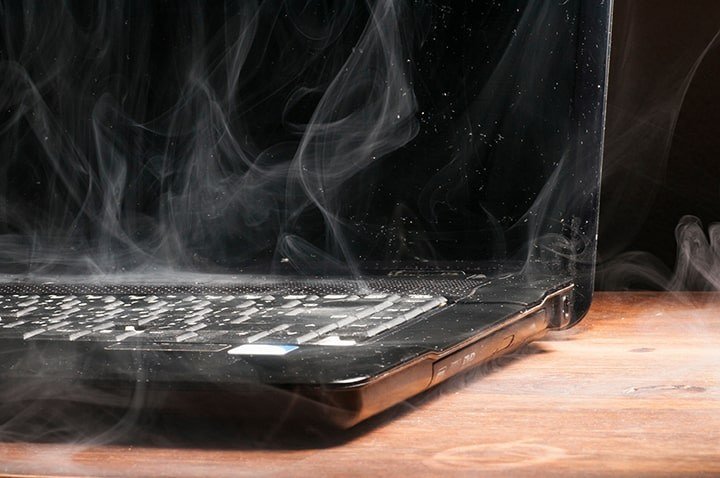
What Should I Do If My Laptop Overheats While Gaming?

What should I do if my laptop overheats while gaming? First: don’t panic, but don’t ignore it either. Modern laptops protect themselves by throttling — slowing down — when they get hot, which is why overheating feels like sudden lag and stuttering right in the middle of a match.
I’ve gamed on laptops for years, and I’ve learned that 90% of overheating is airflow and dust, not defective hardware. The fixes below go from instant to involved, and most people never need to go past step three.
What Should I Do If My Laptop Overheats While Gaming? Act Immediately
First, check your actual temperatures — download HWMonitor or HWiNFO (free) and look at CPU/GPU temps under load. Sustained temps above 90°C (194°F) with throttling mean a real problem; spikes to 85°C during intense scenes are fairly normal for thin gaming laptops.
Immediate relief: lift the rear of the laptop an inch or two. This sounds too simple, but most laptop vents are on the bottom, and a flat desk chokes them. A couple of bottle caps, a book, anything — just get air under it. Then close background apps, especially browsers with fifty tabs and anything updating. If the fans sound like a jet engine constantly even at idle, that’s a different issue — see Why does my laptop fan run loud all the time — but under gaming load, loud fans are normal and good.
Clean the Dust (The Fix Nobody Wants to Do)
Dust is the number one cause of gradual overheating. Over months, it mats across the heatsink fins and fan blades like felt, and cooling efficiency falls off a cliff. If your laptop is a year or older and runs hotter than it used to, this is almost certainly why.
Blast compressed air through the exhaust vents in short bursts (with the laptop off), holding the fan still with a toothpick if you can — letting fans spin freely from air blasts can damage bearings. For a deep clean, you’ll need to open the bottom panel and clean the fans directly; there are model-specific teardown videos for nearly every laptop. While you’re in there after two-plus years, replacing dried-out thermal paste can drop temps 10–15°C — but that’s intermediate surgery, so watch a full video first.
The overheating triage order — do these in sequence:
- Check real temps with HWMonitor so you’re fixing a real problem, not a feeling.
- Lift the rear for airflow and close background apps — instant improvement.
- Blast dust from vents; deep-clean fans if the laptop is over a year old.
- Cap frame rates and drop Ultra settings to High.
- Get a basic cooling pad; skip vacuum attachments and other gimmicks.
Settings That Cool Without Killing Performance
Cap your frame rate. Running a game at 200 fps your screen can’t display just generates heat for nothing — cap at your screen’s refresh rate (usually 60, 120, or 144 Hz) in the game’s settings or the GPU control panel. This single change can cut temperatures dramatically.
Switch Windows to Best Power Efficiency? No — for gaming you want Best Performance, but many laptops have a ‘balanced’ or manufacturer performance mode that’s the real sweet spot. Also try lowering a couple of settings from Ultra to High; the visual difference is tiny and the thermal difference is huge. Undervolting the CPU (via Throttlestop or Intel XTU) is the enthusiast move — same performance, less heat — but read a guide for your specific chip first.
Gear That Actually Helps (and Gimmicks That Don’t)
A cooling pad with fans genuinely helps — expect 3–8°C drops — mostly because it lifts the laptop and forces air at the intakes. Don’t overspend; a $25–$35 pad performs nearly as well as a $80 one. What doesn’t help: those vacuum ‘coolers’ that clamp to exhaust vents (they can actually disrupt designed airflow), and gaming in bed or on a couch where vents sink into fabric.
Room temperature matters more than people think. Gaming in a 78°F room versus a 70°F room can be the difference between throttling and smooth. If your setup is in a hot room, a $20 desk fan pointed at the laptop’s intake side is weirdly effective.
The Bottom Line
What Should I Do If My Laptop Overheats While Gaming? Mistakes That Make It Worse
The most common self-inflicted wound: gaming with the laptop on a bed, couch, or lap. Soft surfaces don’t just block the bottom vents — the machine sinks in and seals them completely, and fabric insulates, trapping heat. I’ve seen temperature drops of 15°C just from moving a laptop to a desk. If you must game on the couch, a lap desk or even a large hardcover book underneath changes everything.
Another mistake: cranking every setting to Ultra because the hardware ‘should’ handle it. Ultra settings are often unoptimized marketing presets — the visual difference between Ultra and High is usually invisible during actual gameplay, while the thermal and performance difference is enormous. Drop to High, cap your frame rate at your screen’s refresh rate, and you’ll get smoother, cooler, quieter gaming. Chasing max settings on a laptop is fighting physics for no visible gain.
Repasting the CPU and GPU — replacing the dried-out thermal paste between the chips and heatsink — is the deep fix for laptops 3+ years old, and it can drop temperatures 10–15°C. It’s intermediate-level surgery: you’ll remove the heatsink, clean off the old paste with isopropyl alcohol, and apply a pea-sized drop of quality paste (Thermal Grizzly Kryonaut is the enthusiast standard). Watch a full teardown video for your exact model first, take photos at each step, and keep screws organized. It’s intimidating the first time and straightforward the second.
Overheating while gaming is usually an airflow and maintenance problem, not a broken laptop. Lift it, clean it, cap your frame rates, and most machines run cool and quiet again. Save the repasting and undervolting for when the simple stuff isn’t enough — it usually is.
Laptop gaming is about working with thermals, not against them: hard surfaces, clean vents, sane settings, capped frame rates. Do those four things and most gaming laptops run cool and quiet for years. Fight the physics and you’ll spend your gaming time listening to fans instead of playing.