
How Do I Reset My WiFi Router Without Losing My Settings?

Here’s the question behind the question: how do I reset my WiFi router without losing my settings? The confusion is understandable, because ‘reset’ means two completely different things on a router — and only one of them wipes everything. Once you know the difference, the fear disappears.
I learned this the dramatic way, factory-resetting a router at 11pm and then spending an hour re-entering settings while my family glared at me. You don’t need to repeat my evening. Here’s exactly which button does what.
How Do I Reset My WiFi Router Without Losing My Settings? Know Your Resets
There are three levels. A reboot (unplug for 30 seconds, plug back in) fixes most glitches and touches nothing — your network name, password, and settings all survive. This is what you want 95% of the time, and it’s what ‘have you tried restarting it’ means.
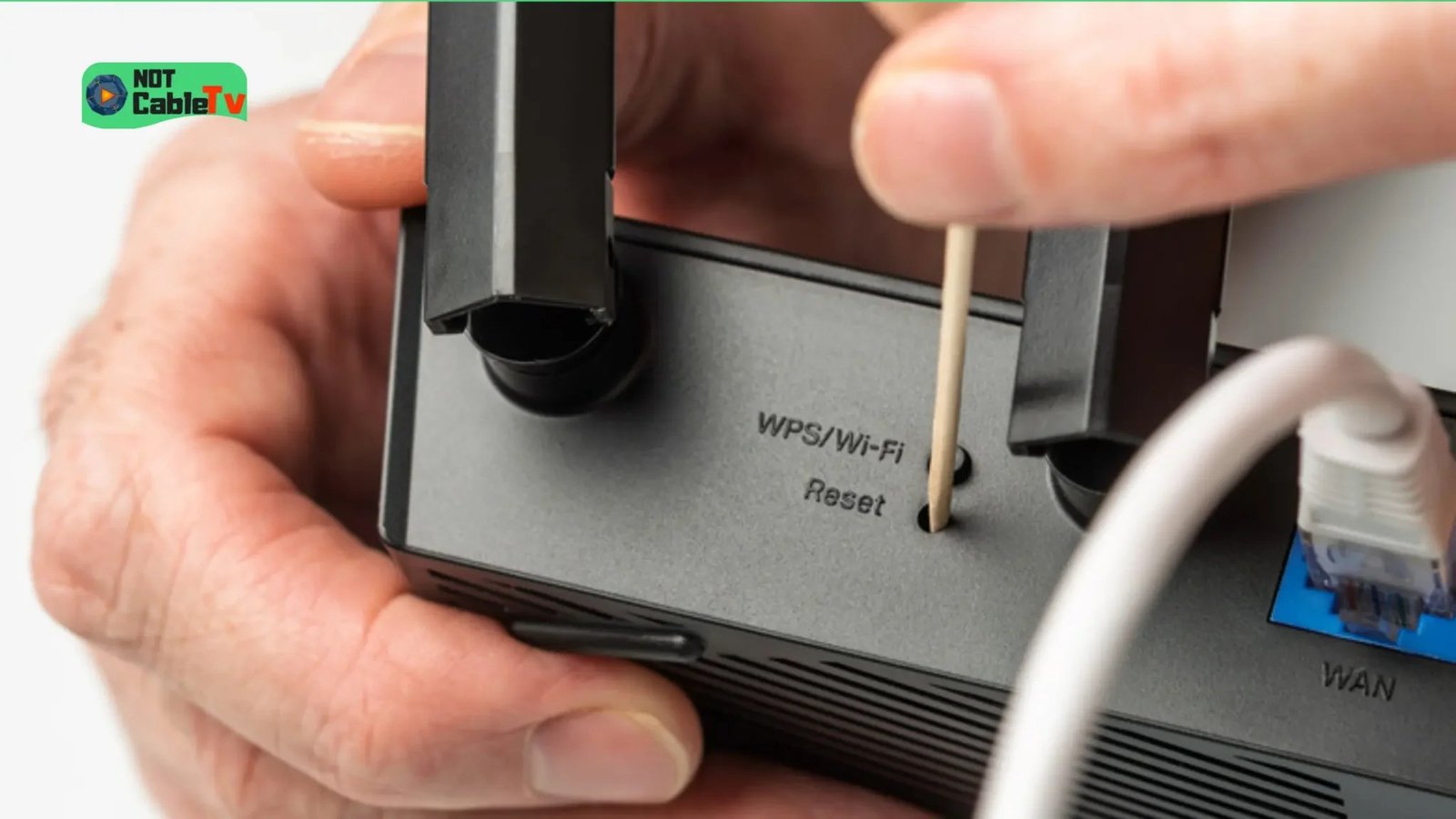
A settings reset via the admin panel restarts all services fresh but keeps your configuration. And a factory reset — the pinhole button held for 10+ seconds — wipes everything back to out-of-the-box state. That last one is the nuclear option, and it’s the only one that loses your settings. For day-to-day slowness, by the way, try our How can I speed up a slow WiFi connection at home fixes before you touch any reset.
Back Up Your Settings First (Two Minutes, Total Peace of Mind)
Every modern router lets you export its configuration to a file. Log into your router’s admin page (usually 192.168.1.1 or 192.168.0.1 — check the sticker on the router), find Administration or System, and look for Backup/Restore settings. Save that file somewhere safe, like your computer or cloud drive.
This backup is your undo button. Even if you do end up factory-resetting, restoring takes two minutes instead of an hour of retyping. Some routers also back up to the manufacturer’s cloud automatically if you’ve registered the device — worth checking. Do this once and you’ll never fear the reset button again.
The Right Way to Reboot (Yes, There’s a Wrong Way)
Unplug the power cable — not the ethernet, the power — and wait a full 30 seconds. That wait matters: it lets the capacitors fully discharge so the router truly cold-boots instead of resuming a half-broken state. Then plug it back in and give it two to three minutes to fully reconnect.
Reboot in the right order if you have a separate modem: modem first, wait for its lights to stabilize, then the router. Reversing the order is the classic reason a reboot ‘doesn’t work.’ Put the router on a weekly reboot schedule and half your mysterious Wi-Fi issues will simply stop happening.
Quick reference — which reset for which problem:
- Slow speeds or devices won’t connect? Reboot (unplug 30 seconds). Settings are safe.
- Changed a setting and broke something? Revert that setting, or reboot — don’t factory reset yet.
- Router acting possessed after a firmware update? Back up, then factory reset and restore.
- Bought a used router? Factory reset immediately — you don’t want the stranger’s settings.
- Always: back up your configuration before touching anything beyond a reboot.
If You Must Factory Reset: The Safe Procedure
Sometimes it’s genuinely needed — a corrupted firmware update, settings so tangled nothing works, or a router you bought used. The safe sequence: back up settings first (above), then take phone photos of every settings page for good measure, especially port forwarding and static IP assignments.
Then press and hold the reset pinhole for 10–15 seconds until the lights flash. Reconnect, run the setup wizard, restore your backup file, and test. Total downtime: about fifteen minutes with a backup, versus an hour-plus of archaeology without one. If guests regularly need access after all this, consider How do I set up a guest WiFi network for visitors so you’re not handing out your main password during the chaos.
The Bottom Line
How Do I Reset My WiFi Router Without Losing My Settings? Pro Tips
Make the backup a habit, not a one-time event: export your router configuration every time you change something meaningful — new port forward, new DHCP reservation, new parental control rule. Save it with a date in the filename (router-backup-2026-10-17.cfg) in your cloud drive. Future-you, staring at a dead router at midnight, will consider past-you a genius. It takes thirty seconds and it’s the highest-value thirty seconds in home networking.
Also: photograph the sticker on the bottom of your router — the default admin password, Wi-Fi password, and serial number. Stickers fade, rub off, and become unreadable exactly when you need them. And label your cables: a $5 label maker (or masking tape and a marker) marking which ethernet cable goes where turns ‘unplug everything and pray’ into a five-minute job. Network maintenance is 90% documentation and 10% technology.
If your router supports it, set up a separate IoT network for smart-home gadgets alongside your main and guest networks. Smart bulbs, cameras, and plugs are notoriously insecure — they’d be the first things compromised in an attack — and isolating them from your computers and phones is genuine defense in depth. Most modern routers offer this under ‘IoT network’ or as a second guest network. Ten minutes of setup, and your cheap smart bulb can never become a stepping stone to your laptop. Given how rarely these gadgets receive security updates, isolation isn’t paranoia — it’s the only realistic defense. Your future self will appreciate the ten minutes the next time a smart-device vulnerability makes the news.
A reboot never touches your settings and fixes most problems. A factory reset wipes everything — so back up your configuration first, and you’ll turn a dreaded chore into a fifteen-minute task. The reset button isn’t scary once you have an undo button.
The people who never fear the reset button aren’t braver — they’re just backed up. Export the config, photograph the sticker, label the cables. Boring preparation turns every router crisis into a minor inconvenience, and you’ll wonder why you ever dreaded it.