
How Do I Free Up Phone Storage Without Deleting My Photos?

How do I free up phone storage without deleting my photos? The ‘Storage Full’ warning always arrives at the worst moment — usually when you’re trying to capture the moment. But photos are rarely the real problem, and deleting memories should be the last resort, not the first.
I’ve rescued ‘full’ phones that had 20GB of recoverable space hiding in places the owner never looked. Here’s where your gigabytes actually went, and how to get them back without touching a single photo.
How Do I Free Up Phone Storage Without Deleting My Photos? Find the Real Hogs
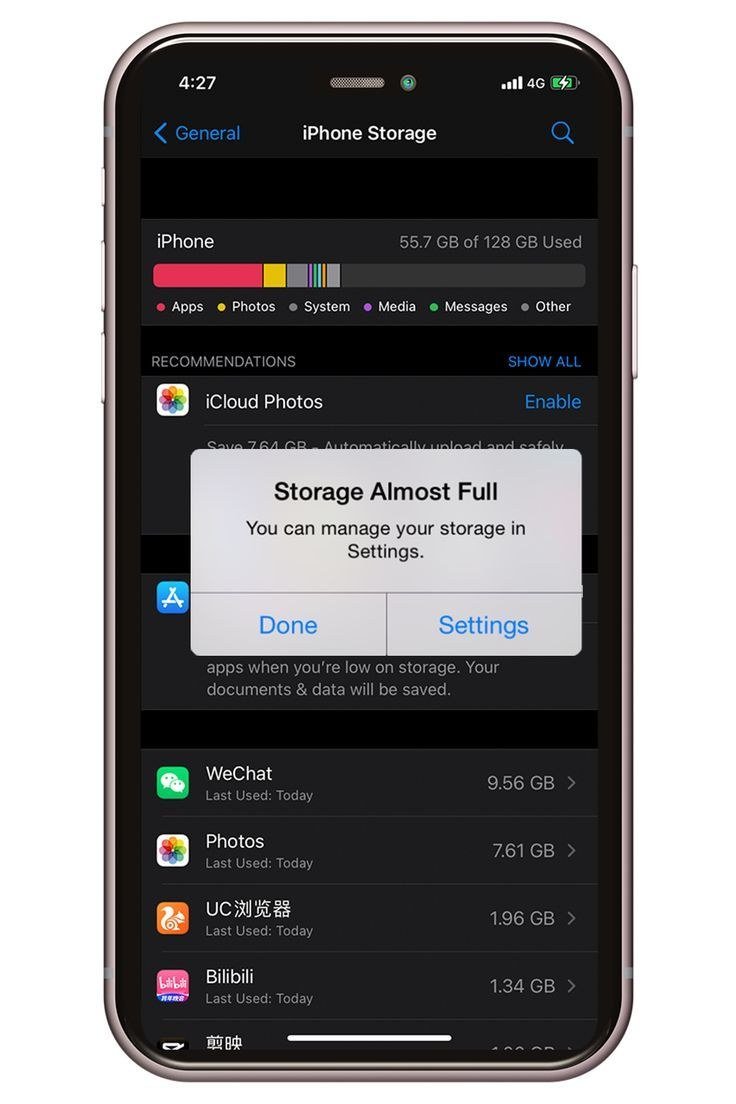
First, look at the actual breakdown: iPhone Settings > General > iPhone Storage, or Android Settings > Storage. The results surprise everyone. It’s almost never photos at the top — it’s usually apps and their accumulated data: a podcast app with 8GB of old episodes, WhatsApp with 6GB of videos, Spotify with 5GB of downloads, or a game you haven’t opened in a year sitting on 10GB.
This audit takes two minutes and directs the whole cleanup. Screenshot the top offenders, then work down the list. The golden rule: attack app data and downloads first, photos last — because unlike photos, most app data is re-downloadable or simply junk. If photos genuinely are the issue, How do I back up my photos to the cloud for free shows how cloud backup with optimized storage shrinks their footprint instead of deleting them.
Offload Apps, Clear Caches, Dump Downloads
On iPhone, enable ‘Offload Unused Apps’ — it removes the app but keeps its data, so reinstalling restores everything. Then manually offload the big games and apps you haven’t touched in months. On Android, clear app caches (Settings > Apps > select app > Storage > Clear Cache) — this is safe temporary data, and social media apps notoriously hoard gigabytes of it.
Then hunt the downloads: podcast episodes marked ‘keep,’ offline maps of cities you visited once, Netflix downloads from last year’s flights, message attachments (WhatsApp and iMessage both accumulate shocking amounts of video). Deleting a downloaded season you’ll re-download if needed costs nothing; the space is real and immediate. Google’s storage guidance at Google's official support guides covers the built-in cleanup tools both platforms now include.
Messages, Browsers, and the Sneaky Stuff
Text threads are silent storage killers — years of shared photos and videos live inside your messaging apps, counted separately from your photo library. On iPhone, check Settings > General > iPhone Storage > Messages to see the damage, and set messages to auto-delete after a year (Settings > Messages > Keep Messages). Review the ‘Top Conversations’ attachments and mass-delete old videos guilt-free.
Browsers hoard data too: clear website data in Safari or Chrome settings. And check the Files app (iPhone) or Downloads folder (Android) for forgotten PDFs, installers, and random attachments. Finally, restart the phone — it sounds silly, but iOS and Android both purge temporary system files on reboot, occasionally freeing a gigabyte or more of phantom ‘System Data.’
The no-photos-deleted cleanup sequence:
- Check the storage breakdown — attack the top offenders, which are rarely photos.
- Offload unused apps (iPhone) or clear app caches (Android) — gigabytes, zero risk.
- Delete downloaded podcasts, offline maps, old Netflix downloads, and message attachments.
- Set messages to auto-delete after a year; clear browser website data.
- Enable cloud photo backup with optimized storage so photos stop growing locally.
Keeping It Clear Going Forward
Prevention beats cleanup. Turn on cloud photo backup with optimized storage so full-resolution originals live in the cloud. Stream instead of downloading where possible — downloaded content is the fastest-growing storage category for most people. Review the storage screen every few months; five minutes of maintenance beats the annual ‘storage full’ crisis.
And when buying your next phone, let this experience inform the size: if you constantly fight for space despite cloud backup, you’re a 256GB person — our How much storage do I really need on a phone for everyday use guide helps you decide honestly. But most people who do this cleanup once discover 128GB was fine all along; they just never evicted the squatters.
The Bottom Line
How Do I Free Up Phone Storage Without Deleting My Photos? Pro Tips
Pro tip: the nuclear option nobody mentions is the fresh start — backing up, factory-resetting, and restoring only what you need. ‘System Data’ and ‘Other’ storage bloat is real and largely uncleanable; a reset reclaims gigabytes that no amount of cache-clearing touches. It’s a two-hour project once a year or two, and phones come back feeling brand new. Back up everything first (photos, messages, authenticator apps especially), then enjoy the clean slate.
Also: switch your camera to ‘High Efficiency’ format (HEIC/HEIF) if you haven’t — it halves photo and video file sizes with no visible quality loss on modern phones. And audit your offline content quarterly: downloaded Netflix seasons from trips long past, podcast episodes you’ll never hear, offline maps of cities you visited once. Set a recurring calendar reminder — ‘storage audit’ — and spend ten minutes evicting the squatters. Maintenance beats crisis, every time.
Consider a NAS (network-attached storage) if your photo library is large and growing — a two-bay Synology or similar with mirrored drives gives you terabytes of private cloud storage with no monthly fees, accessible from anywhere. The upfront cost ($300–$500 with drives) pays for itself in under two years versus paid cloud tiers, and your data stays yours. Pair it with the free cloud tier for offsite backup of the irreplaceable shots, and you’ve got the professional 3-2-1 backup strategy at consumer prices.
Your photos aren’t the problem — app data, downloads, and message attachments are. Audit the storage breakdown, evict the squatters, and enable cloud backup for photos. Most ‘full’ phones have 10–20GB of recoverable space that has nothing to do with memories. Delete the junk, keep the photos.
Phone storage is a maintenance habit, not a crisis to solve annually. Audit the breakdown, evict app data and downloads, use efficient formats, and consider the occasional fresh start. Your photos stay, the junk goes, and the ‘Storage Full’ warning becomes a distant memory.