
Can I Upgrade the RAM in an Older Laptop Myself?

Can I upgrade the RAM in an older laptop myself? Often yes — and it’s the single best value upgrade in computing. A $40 RAM stick can make a sluggish five-year-old laptop feel new again, and the actual installation takes about ten minutes with a single screwdriver.
I’ve upgraded RAM in maybe eight laptops, and the hardest part was never the installation — it was figuring out which laptops allow it. That’s where most people get stuck, so let’s start there.
Can I Upgrade the RAM in an Older Laptop Myself? First, Check If Yours Allows It
The honest news: many modern thin-and-light laptops have soldered RAM — permanently attached, un-upgradeable, decided at purchase. Most ultrabooks, MacBooks (since ~2016), and Surface devices fall here. But most older laptops (roughly 2015–2021) and many current budget/mid-range and business laptops still have RAM slots.
Check in 30 seconds: on Windows, open Task Manager > Performance > Memory — the bottom-right shows ‘Slots used’ (e.g., ‘1 of 2’). If it says slots are available, you’re upgradeable. For the definitive answer, enter your exact model at Crucial’s Memory Advisor (crucial.com) — it tells you the RAM type, maximum capacity, and which slots are free. This check takes two minutes and prevents buying the wrong stick.
What RAM to Buy (Without Overthinking It)
Match three things: type (DDR3, DDR4, or DDR5 — they are physically incompatible, so get this right), speed (match or exceed your current stick’s MHz; the system runs at the slower stick’s speed), and capacity (8GB→16GB is the sweet spot for most older laptops; 16GB→32GB only if you do heavy creative work).
Brand barely matters — Crucial, Corsair, Kingston, and Samsung are all fine; buy whatever’s cheapest from a reputable seller. One stick or two? Two matched sticks enable dual-channel mode, which gives a small speed boost — if you have two slots and one is filled with 8GB, adding a second 8GB beats replacing with a single 16GB. Check your manual or Crucial’s advisor for the max per slot; some older laptops cap at 8GB per slot.
The RAM upgrade cheat sheet:
- Check Task Manager > Performance > Memory for ‘slots used’ — free slots mean upgradeable.
- Use Crucial’s Memory Advisor for your exact model: type, speed, and max capacity.
- Buy DDR3/DDR4/DDR5 to match — they’re physically incompatible, no mixing.
- 8GB to 16GB is the sweet spot; match sticks in pairs for dual-channel.
- Installation: power off, panel off, clips out, new stick in at an angle, press flat, done.
The Installation: Ten Minutes, One Screwdriver
Power off completely, unplug, and — if the battery is removable — take it out. Ground yourself by touching metal (static is the theoretical risk; in practice, just don’t shuffle across carpet in wool socks). Remove the bottom panel screws — keep them organized, because they’re often different lengths — and locate the RAM slots.
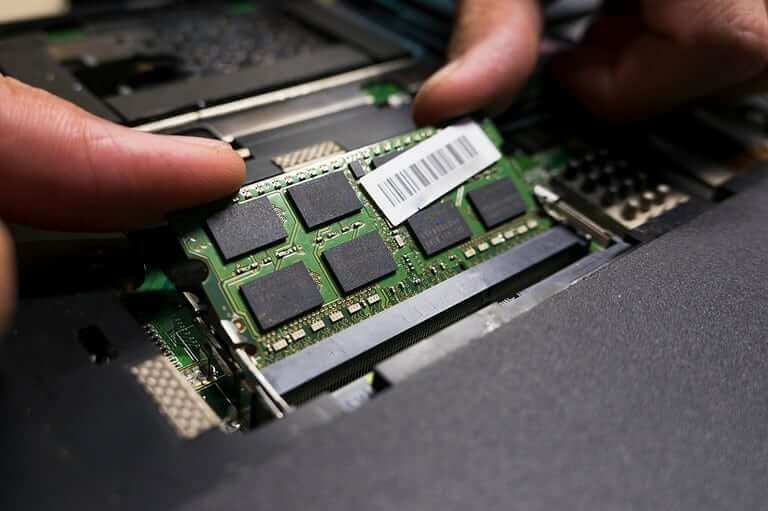
The old stick (if replacing) releases via two side clips that pop it up at an angle; slide it out. The new stick goes in at the same angle, then presses down flat until the clips click. That’s the whole procedure. Reassemble, boot up, and verify in Task Manager that the new total shows. If the laptop doesn’t boot, reseat the stick — 90% of ‘failed’ upgrades are just a stick not fully clicked in.
When RAM Isn’t the Fix (and What Is)
RAM upgrades work miracles on machines slowed by memory pressure — the tell is Task Manager showing 80%+ memory usage during normal work. But if your laptop has 8GB of RAM sitting at 40% usage and it’s still slow, the bottleneck is elsewhere — usually a spinning hard drive, in which case an SSD upgrade (also easy, also cheap) is the real fix.
Also be realistic about age: a 2012 laptop with maxed RAM is still a 2012 laptop — fine for browsing and documents, hopeless for modern creative apps. At some point the platform itself is the limit. But for machines from roughly 2016 onward with an SSD and a RAM bump to 16GB, you’d be surprised how capable they remain — which is exactly why refurbished business laptops (see Is it worth buying a refurbished laptop for college) are such good values.
The Bottom Line
Can I Upgrade the RAM in an Older Laptop Myself? Pro Tips
Pro tip: buy the RAM after checking your exact model’s manual, not just the Task Manager slot count. Some laptops have one soldered stick plus one slot (common in thin models), which means you can only add to what’s there, not replace freely. Others have unofficial higher maximums than the manufacturer states — enthusiast forums often document successful 32GB upgrades in machines ‘limited’ to 16GB. The manual plus a forum search gives you the real picture.
Also: while you have the bottom panel off, do the maintenance trifecta — blow out the dust, check the battery’s physical condition (swelling means replace immediately, it’s a safety issue), and consider repasting if the machine is 3+ years old and runs hot. You’re already inside with a screwdriver; the incremental effort is tiny and the combined effect can make an old laptop feel genuinely new. One opening, three upgrades, ten extra minutes.
If your laptop has soldered RAM and can’t be upgraded, don’t despair — there are still meaningful speedups available. An SSD upgrade (if it has a replaceable drive) delivers the biggest perceived performance boost of any single change, a fresh OS install clears years of accumulated cruft, and switching to a lightweight Linux distribution can revive machines that Windows has outgrown. The RAM ceiling is real, but it’s one constraint among several — attack the others and the machine often has years of useful life left.
If your older laptop has RAM slots — and most pre-2021 non-ultrabook models do — a $40–$80 RAM upgrade to 16GB is the best performance-per-dollar move in computing. Check compatibility first, match the specs, and the installation is genuinely ten minutes with a screwdriver. Your old laptop probably isn’t dying; it’s just thirsty for memory.
RAM upgrades are the rare win-win in computing: cheap, easy, and transformative for the right machine. Verify compatibility, buy the right spec, take your time with the clips, and do the dust cleaning while you’re in there. Your old laptop has more life in it than you think.