
How Do I Connect My Printer to WiFi Without the Setup CD?

How do I connect my printer to WiFi without the setup CD? Nobody has a CD drive anymore, and printer makers know it — every modern printer can join your Wi-Fi without that ancient disc. You’ve got three solid methods, and at least one will work for whatever printer is glaring at you from the corner.
I’ve set up printers for three generations of my family, and the process has genuinely gotten easier — the CD is extinct, replaced by phone apps and push-button pairing. Here’s each method, easiest first.
How Do I Connect My Printer to WiFi Without the Setup CD? Try WPS First
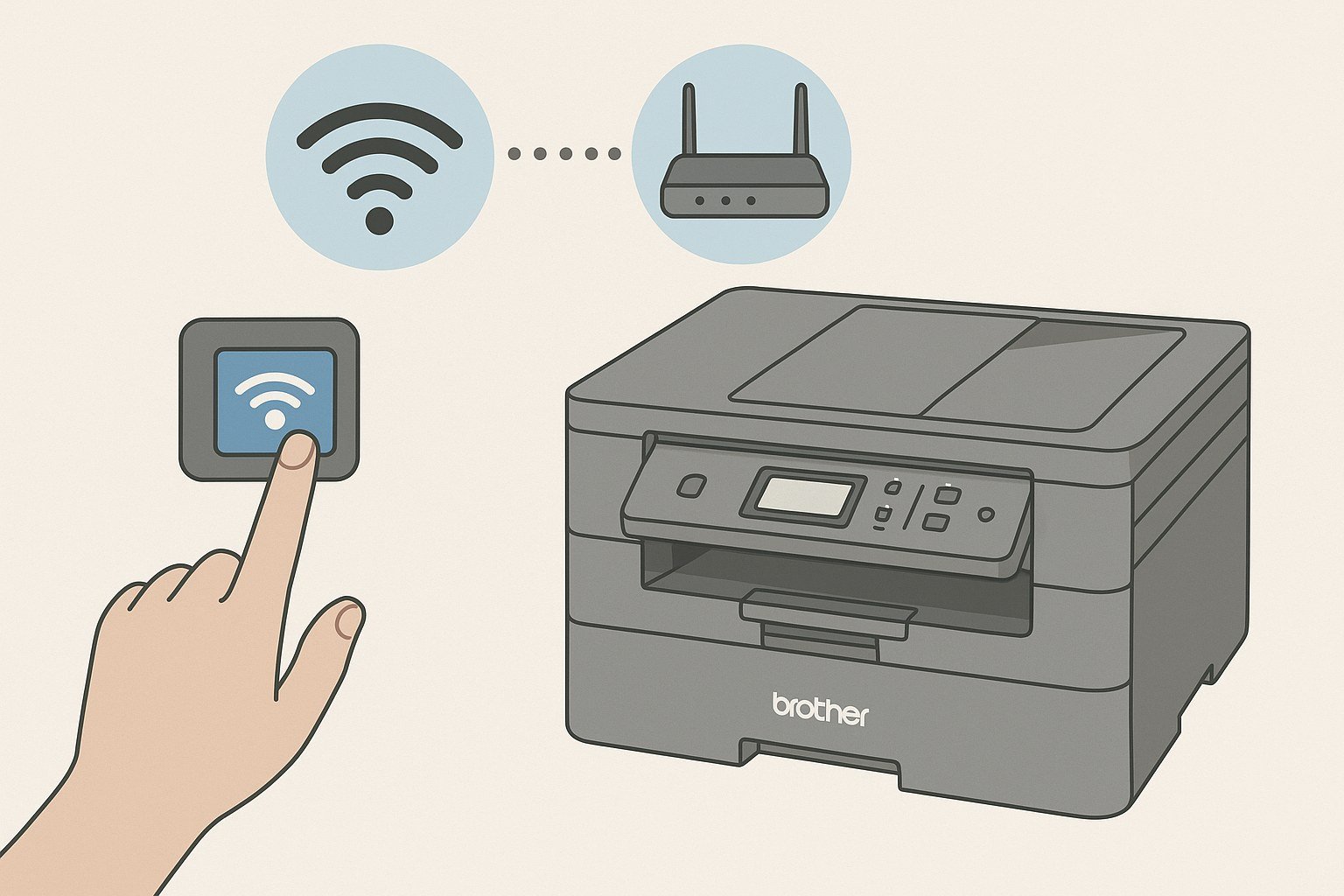
WPS (Wi-Fi Protected Setup) is the fastest method if both your printer and router support it. On the printer, find the WPS button or the WPS option in its wireless settings menu. Press it, then within two minutes press the WPS button on your router. The two devices handshake automatically — no passwords, no typing, done in about a minute.
The catch: WPS needs to exist on both ends. Most printers from the last decade have it; some newer routers have dropped the physical button (check the router’s admin page for a software WPS option). If WPS isn’t available on either side, move to the next method — no harm done. And if your router needs attention anyway, our How do I reset my WiFi router without losing my settings guide covers the admin-panel basics.
Method 2: The Printer’s Own Display Panel
Most Wi-Fi printers have a small touchscreen or button panel with a wireless setup wizard built in. Navigate to Settings > Network/Wireless > Wireless Setup Wizard, and the printer will scan for nearby networks like your phone does. Select yours, type the Wi-Fi password using the on-screen keyboard, and wait for the confirmation.
Typing a long Wi-Fi password on a two-inch touchscreen is the worst part of this method — go slowly, watch for the classic mistakes (capitalization, 0 vs O), and know that most printers let you show the password as you type. Once connected, print a network configuration page from the printer’s menu to confirm it got a valid IP address.
Setup checklist:
- Try WPS push-button pairing first — fastest when both devices support it.
- No WPS? Use the printer’s wireless setup wizard and type the password carefully.
- Easiest overall: the manufacturer’s free app (HP Smart, Canon PRINT, Epson iPrint).
- Keep the printer near the router during setup, then move it to its home.
- Assign a static IP afterward so the printer doesn’t ‘disappear’ next month.
Method 3: The Manufacturer’s App (The Modern CD)
HP Smart, Canon PRINT, Epson iPrint, Brother Mobile Connect — every major brand now has a free app that replaces the setup CD entirely. Install the app on your phone, make sure your phone is on the Wi-Fi network you want the printer to join, and follow the app’s guided setup. The app finds the printer over Bluetooth or direct Wi-Fi, then hands it your network credentials.
This is honestly the best method for most people in 2026 — the apps handle driver installation, firmware updates, and even ink ordering. Download the app before you start, keep the printer within a few feet of the router during setup, and let the app do the thinking. The manufacturer’s support site (linked from the app) has model-specific videos if you get stuck.
After It Connects: Making It Stay Connected
Printers are notorious for dropping off Wi-Fi and never coming back. Two preventive fixes: assign the printer a static IP address in your router’s settings (or use DHCP reservation) so its address never changes — most ‘printer disappeared’ mysteries are just IP changes. And if the printer sits far from the router, consider that weak signal is the real problem, not the printer.
When adding the printer to your computer, skip ancient driver CDs entirely — Windows and macOS both auto-detect network printers now, or you can add by IP address in system settings. If it vanishes one day, the universal fix sequence is: restart printer, restart router, re-run the app setup. Works nine times out of ten.
The Bottom Line
How Do I Connect My Printer to WiFi Without the Setup CD? Pro Tips
The pro move nobody mentions: give your printer a static IP address the day you set it up. Printers are notorious for grabbing a new IP address from the router every few weeks, at which point every computer ‘loses’ the printer and you’re troubleshooting all over again. A static IP (set in your router’s DHCP reservation table — five minutes) ends this cycle permanently. It’s the single highest-value printer maintenance task there is.
Also: when the printer inevitably goes offline one day, the fix order is printer restart, then router restart, then re-run setup — in that order, every time. Don’t reinstall drivers first (that’s the time-sink trap); the problem is almost always the network connection, not the driver. And if your printer supports it, enable email-to-print or cloud printing — being able to print from your phone without being on the same network feels like magic the first time.
If the manufacturer’s app can’t find your printer, the fallback that almost always works is connecting the printer to your computer via USB temporarily, then using the app or web interface to configure Wi-Fi through the USB connection. It’s the old-school method the apps replaced, and it bypasses every wireless discovery issue in one move. Keep a USB cable handy during setup even if you plan to go fully wireless — the five minutes of wired setup saves thirty minutes of ‘why can’t it see the printer’ frustration.
The setup CD is long dead and you don’t miss it — WPS, the printer’s built-in wizard, or the manufacturer’s app will get any modern printer on your Wi-Fi in minutes. Use the app method for the smoothest ride, give the printer a static IP so it stays put, and you’ll never think about printer setup again.
Printer setup is a ten-minute job and printer maintenance is a static IP address. Do those two things and the printer fades into the background where it belongs — a tool you use, not a project you manage. The CD era is over; good riddance.
[…] How do I connect my printer to WiFi without the setup CD […]