
Introduction
When you first make a map in Minecraft, it only shows a small area — 128 by 128 blocks. That is fine for your house and garden, but what if you want to see your whole town, or plan a big adventure?
The answer is to make your map bigger by zooming it out. Each zoom level doubles the area your map covers. This guide shows you exactly how to do it in both Java and Bedrock editions.
Direct Answer: How to Make a Bigger Map in Minecraft
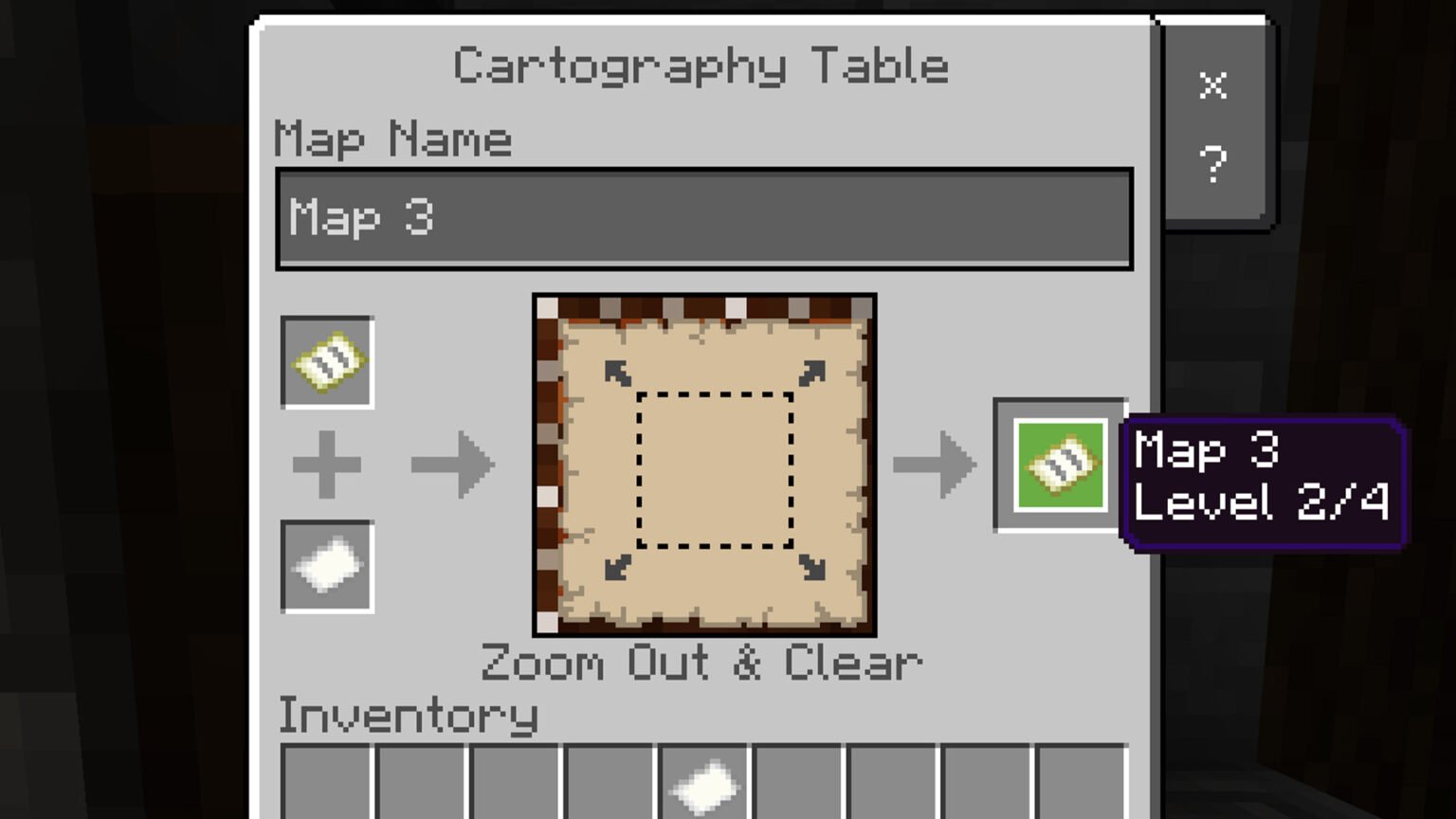
To make a map bigger in Minecraft, put your map in the top slot of a cartography table and a piece of paper in the bottom slot. Take the zoomed-out map from the result slot. Repeat up to 4 times to reach the biggest size: 2048 by 2048 blocks.
What You Need
Before you start, gather these items:
- A filled map — a map you have already used (right-clicked) so it shows your area.
- Paper — one piece per zoom level (up to 4 pieces total).
- A cartography table — craft one with 4 wooden planks and 2 paper. Put the planks in a 2×2 square at the bottom of the crafting grid and the paper in the two top-middle slots.
Step-by-Step: Zooming Out Your Map
Step 1: Place the Cartography Table
Put your cartography table down anywhere — in your house, your base, or wherever you craft. Right-click it to open its screen.
Step 2: Put Your Map in the Top Slot
On the left side of the cartography table screen, you will see two slots. Drag your map into the top slot. The map preview will appear in the middle.
Step 3: Put Paper in the Bottom Slot
Drag one piece of paper into the bottom slot. The preview in the middle will change — your map image gets smaller, showing that the map will now cover a bigger area.
Step 4: Take the Zoomed-Out Map
A new map appears in the result slot on the right. Click it to take it. Congratulations — your map is now one zoom level bigger.
Step 5: Repeat for More Zoom
Put the zoomed-out map back in the top slot, add another paper, and take the result again. You can do this up to 4 times total.
Map Zoom Levels Explained
Each zoom level doubles the width and height of the area shown. Here is what each level covers:
- Level 0/4 (starting map): 128 × 128 blocks — good for a house or small farm.
- Level 1/4: 256 × 256 blocks — good for a village or town.
- Level 2/4: 512 × 512 blocks — good for scouting nearby biomes.
- Level 3/4: 1024 × 1024 blocks — good for region planning and long trips.
- Level 4/4 (maximum): 2048 × 2048 blocks — a huge overview of your world.
Remember: zooming out makes everything smaller and less detailed. A level 4 map shows a giant area but you will not see small buildings clearly. Many players keep two maps: a zoomed-in one for building and a zoomed-out one for travel.
Important: Re-Explore After Zooming Out
When you zoom out a map, the new larger area is blank until you walk through it. Your old explored area stays in the middle (or top-left corner on zoomed maps), but the new edges need exploring.
Hold the zoomed-out map in your hand and walk around. The map fills in as you travel. This is a great excuse for an adventure.
The Old Method: Crafting Table (8 Paper)
Before cartography tables existed, players zoomed out maps in a crafting table by surrounding the map with 8 pieces of paper. This still works, but it costs 8 paper per zoom instead of 1. The cartography table is much cheaper — always use it if you can.
Other Things You Can Do at a Cartography Table
The cartography table does more than zoom:
- Clone a map: map in the top slot + empty map in the bottom slot = two identical maps. Great for sharing with friends.
- Lock a map: map in the top slot + glass pane in the bottom slot = a locked map that never updates. Useful for keeping a “before” picture of your builds.
- Add a locator (Bedrock only): map + compass = a locator map that shows player icons.
Tips for Big Maps
- Make a map wall: put item frames on a wall and fill them with level 3 or 4 maps side by side. It looks amazing and works like a real atlas.
- Mark your base with a banner: place a coloured banner and right-click it while holding your map. The banner’s location gets marked on the map.
- Name your maps: rename maps on an anvil (“Home Base”, “Nether Hub”) so you can tell them apart in your inventory.
- Java vs Bedrock: zooming works the same in both editions. The only difference is locator maps, which are a Bedrock feature.
Common Mistakes
Zooming Out an Empty Map
An empty (unused) map has nothing on it yet. Zoom it out and you just get a bigger empty map. Always use the map first (right-click while holding it) before zooming out.
Forgetting That Detail Gets Lost
A level 4 map will not show your cosy cottage clearly. Do not zoom out your only map — keep a low-zoom copy for detail work.
Wasting Paper
Do not use the old 8-paper crafting recipe. One paper in a cartography table does the same job.
Frequently Asked Questions
How many times can you zoom out a Minecraft map?
Four times. The levels go from 0/4 (128×128 blocks) to 4/4 (2048×2048 blocks).
Does zooming out work in both Java and Bedrock?
Yes. The cartography table method works the same in both editions.
Do I need to re-explore after zooming out?
Yes. The newly added area is blank until you walk through it with the map in your hand.
Can I zoom a map back in?
No. Zooming out is permanent. If you want a detailed map again, craft a new one.
What is the cartography table recipe?
4 wooden planks (any type) in a 2×2 square plus 2 paper on top, made in a crafting table.
Can I copy a zoomed-out map for a friend?
Yes. Put your map in the top slot of a cartography table and an empty map in the bottom slot to clone it.
Conclusion
Making a bigger map in Minecraft is easy: map + paper in a cartography table, up to four times. Now go explore that huge new area your map covers.
For more Minecraft help, check out our Minecraft beginner guides and our redstone tutorials. Detailed references: Rock Paper Shotgun’s Minecraft map guide and Beebom’s cartography table guide.