
How to Connect AirPods to Windows Laptop Without Bluetooth Icon (Easy Fix 2026)
Tags: How to Connect AirPods to Windows Laptop Without Bluetooth Icon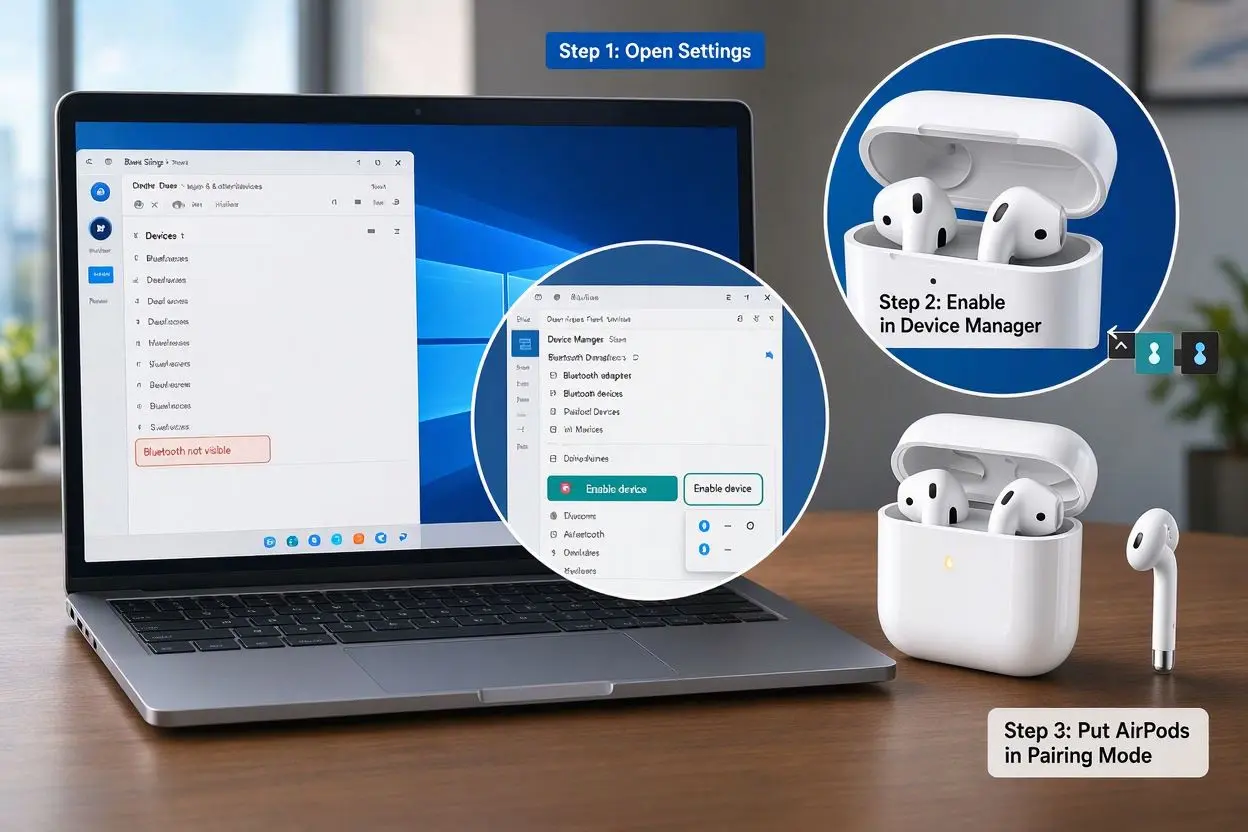
You open your laptop, case in hand, ready to listen to something. Then you look at the taskbar and there’s no Bluetooth icon. Nothing in Quick Settings either. Annoying, right?
I’ve seen this happen on plenty of Windows laptops, and the good news is that it’s rarely a hardware death sentence. In most cases the icon is just hidden, switched off, or waiting on a driver. This guide walks you through every fix in the order that actually makes sense, so you can connect your AirPods to your Windows laptop without the Bluetooth icon and get back to your music or calls.
Can AirPods Work With a Windows Laptop at All?
Yes. AirPods are designed for Apple devices, but they’re standard Bluetooth earbuds underneath. Any Windows 10 or Windows 11 laptop with working Bluetooth can pair with AirPods, AirPods Pro, or AirPods Max.
What you lose on Windows is the Apple-only extras: Siri, automatic device switching, and easy firmware updates. Audio and the microphone still work fine.
Why Is the Bluetooth Icon Missing on Your Laptop?
Before fixing it, it helps to know why it vanished. The usual suspects are:
- Bluetooth is switched off, or Airplane mode is on
- The icon is simply hidden in the taskbar overflow area
- The Bluetooth driver is outdated, corrupted, or missing
- The Bluetooth Support Service has stopped running
- Windows Fast Startup glitched after a shutdown
- Your laptop has no Bluetooth hardware at all (rare, mostly on older or budget models)
Let’s go through the fixes from simplest to most involved.
Step 1: Check the Obvious Things First
It sounds basic, but this solves the problem more often than you’d expect.
- Press Windows + A to open Quick Settings (Windows 11). Look for the Bluetooth tile. If you see it, click it to turn Bluetooth on.
- Make sure Airplane mode is off. It disables Bluetooth completely.
- Look for a Bluetooth or wireless key on your keyboard, often combined with an F-key. You may need to hold Fn while pressing it.
- Restart the laptop. A real restart, not just closing the lid.
If the Bluetooth toggle shows up now, skip ahead to Step 6 and pair your AirPods.
Step 2: Open Bluetooth Settings Without the Icon
You don’t need the taskbar icon to reach Bluetooth settings.
On Windows 11:
- Press Windows + I to open Settings.
- Click Bluetooth & devices on the left.
- Make sure the Bluetooth switch at the top is On.
On Windows 10:
- Press Windows + I.
- Go to Devices, then Bluetooth & other devices.
- Turn Bluetooth On.
If you can see this page and the toggle, your Bluetooth works. You only need to bring the icon back, or skip it entirely and pair from here.
Step 3: Bring Back the Bluetooth Icon in the Taskbar
If Bluetooth works but the icon is hidden:
- Go to Settings > Bluetooth & devices > More Bluetooth settings (on Windows 10, it’s under Related settings).
- In the Options tab, tick Show the Bluetooth icon in the notification area.
- Click Apply, then OK.
Also click the small up arrow (^) near your taskbar clock. Windows often hides the icon in there, and you can simply drag it back to the main taskbar.
Step 4: Bluetooth Option Completely Missing? Check Device Manager
If there’s no Bluetooth toggle anywhere in Settings, the problem is deeper. Here’s how to check.
- Right-click the Start button and open Device Manager.
- Look for a Bluetooth category.
- If you don’t see it, click View > Show hidden devices and look again.
What you might find:
- Bluetooth category exists with an adapter listed: Right-click it and choose Enable device if it’s disabled. If there’s a yellow warning mark, go to Step 5.
- Nothing Bluetooth-related at all: Look under Network adapters or Other devices. If it’s still missing, your laptop may not have a Bluetooth chip, and you’ll want the adapter solution in Step 7.
Step 5: Fix the Driver and the Bluetooth Service
A bad driver is the number one reason the Bluetooth option disappears after a Windows update.
Update or reinstall the driver:
- In Device Manager, right-click your Bluetooth adapter and choose Update driver.
- Pick Search automatically for drivers.
- If that doesn’t help, visit your laptop manufacturer’s support page (HP, Dell, Lenovo, ASUS, Acer), enter your model number, and download the latest Bluetooth driver. This is usually more reliable than the generic one Windows installs.
Restart the Bluetooth service:
- Press Windows + R, type
services.msc, and press Enter. - Find Bluetooth Support Service and double-click it.
- Set Startup type to Automatic, click Start, then OK.
Run the built-in troubleshooter:
Go to Settings > System > Troubleshoot > Other troubleshooters and run the Bluetooth troubleshooter. It catches small problems you’d never spot yourself.
One more trick: In Device Manager, open your Bluetooth adapter’s Properties > Power Management and untick Allow the computer to turn off this device to save power. Windows sometimes switches Bluetooth off and forgets to turn it back on.
Step 6: Connect Your AirPods to the Windows Laptop
Once the Bluetooth toggle is available, the pairing itself takes under a minute.
- Put both AirPods in the charging case. Make sure they have at least some charge (around 20% is ideal).
- Open the lid, but keep the AirPods inside.
- Press and hold the small setup button on the back of the case until the light starts flashing white. That means pairing mode is on.
- On your laptop, go to Settings > Bluetooth & devices > Add device > Bluetooth.
- Wait for AirPods to appear in the list, then click it.
- When it says Connected, take the AirPods out and put them in your ears.
Make the laptop actually use them: Click the speaker icon in the taskbar and choose your AirPods as the output device. Windows sometimes connects them but keeps playing sound through the laptop speakers.
Quick tip: If the AirPods don’t show up, turn off Bluetooth on your phone and any other nearby device first. AirPods love to reconnect to your iPhone and ignore your laptop.
Step 7: No Bluetooth Hardware? Use a USB Bluetooth Adapter
If Device Manager shows no Bluetooth adapter at all, don’t worry. You don’t need a new laptop.
A small USB Bluetooth adapter (Bluetooth 5.0 or higher) plugs into a USB port and gives your laptop Bluetooth instantly. Most are plug-and-play on Windows 10 and 11. After plugging it in, the Bluetooth option and icon usually appear within a minute, and you can follow Step 6.
Pick a known brand and check that it supports Windows 10/11. Very cheap unbranded adapters often cause drop-outs and audio lag.
AirPods Showing Up but Not Connecting? Try a Reset
If your laptop sees the AirPods but pairing fails, reset them:
- Put the AirPods in the case and close the lid for about 30 seconds.
- Open the lid and hold the setup button for around 15 seconds, until the light flashes amber and then white.
- On your laptop, remove any old AirPods entry from Bluetooth & devices (click the three dots, then Remove device).
- Pair them again from scratch.
This fixes most “paired but won’t connect” situations.
Things to Expect When Using AirPods on Windows
A little honesty goes a long way here, so you won’t think something is broken:
- No Siri. That’s Apple only.
- Call audio can sound lower quality when the microphone is active. Windows switches to a basic headset mode during calls.
- Battery percentage may not always show properly.
- Firmware updates need an Apple device. If your AirPods act strangely on Windows, a quick connection to an iPhone can update them.
Quick Troubleshooting Checklist
- Bluetooth toggle on, Airplane mode off
- Icon enabled in More Bluetooth settings
- Bluetooth driver updated from the manufacturer’s website
- Bluetooth Support Service set to Automatic
- Old AirPods entries removed, then paired again
- Other nearby devices’ Bluetooth switched off while pairing
- USB Bluetooth adapter ready as a backup
Final Thoughts
A missing Bluetooth icon looks scary, but it usually comes down to a hidden setting, a stopped service, or a driver that needs a refresh. Start with the simple checks, work your way down, and you’ll almost certainly get your AirPods connected. If your laptop truly has no Bluetooth, a cheap USB adapter solves it for good.
Got it working? Pair once, and Windows will remember your AirPods next time.
Frequently Asked Questions (FAQs)
1. How do I connect AirPods to a Windows laptop if there is no Bluetooth icon?
Open Settings with Windows + I, go to Bluetooth & devices, and turn Bluetooth on. Then click Add device, choose Bluetooth, and select your AirPods. You don’t need the taskbar icon for this.
2. Why is the Bluetooth option missing on my Windows 11 laptop?
The most common reasons are an outdated or corrupted driver, a stopped Bluetooth Support Service, Airplane mode, or a disabled adapter in Device Manager. Updating the driver from your laptop manufacturer’s website fixes it most of the time.
3. Why are my AirPods not showing in the Bluetooth list?
Your AirPods may not be in pairing mode. Keep them in the open case and hold the setup button until the light flashes white. Also turn off Bluetooth on your phone, since the AirPods may be trying to connect there instead.
4. Can I connect AirPods to a Windows laptop without built-in Bluetooth?
Yes. Plug in a USB Bluetooth adapter (version 5.0 or higher recommended), let Windows install it, and then pair your AirPods normally.
5. How do I get the Bluetooth icon back on my taskbar?
Go to Settings > Bluetooth & devices > More Bluetooth settings, then tick “Show the Bluetooth icon in the notification area”. Also check the hidden icons arrow near the clock.
6. Do AirPods work properly on Windows 10 and Windows 11?
They do. Music, videos, and calls all work. You just won’t get Siri or automatic switching between Apple devices.
7. Why do my AirPods connect but there is no sound on my laptop?
Windows may still be using your laptop speakers. Click the speaker icon in the taskbar and select your AirPods as the playback device.
8. How do I reset my AirPods if they won’t pair with my laptop?
Place them in the case, open the lid, and hold the setup button for about 15 seconds until the light flashes amber and then white. Remove the old entry from your laptop’s Bluetooth list and pair again.
9. Can I use AirPods as a microphone on a Windows laptop?
Yes, but call audio quality is usually lower than on an iPhone because Windows uses a basic headset profile when the mic is active.
10. Will my AirPods reconnect automatically to my Windows laptop?
Usually yes, once they are paired and nearby. If they don’t, open Bluetooth & devices and click Connect next to your AirPods.